If both versions are Word files, use Compare in Word. If one of them is a PDF, or you have a whole folder of versions, convert both to Markdown and compare the text files in WinMerge. It marks every changed line and the changed words inside it.
This guide is for anyone who gets a contract, policy or specification back with "a few small edits" and needs to see all of them.
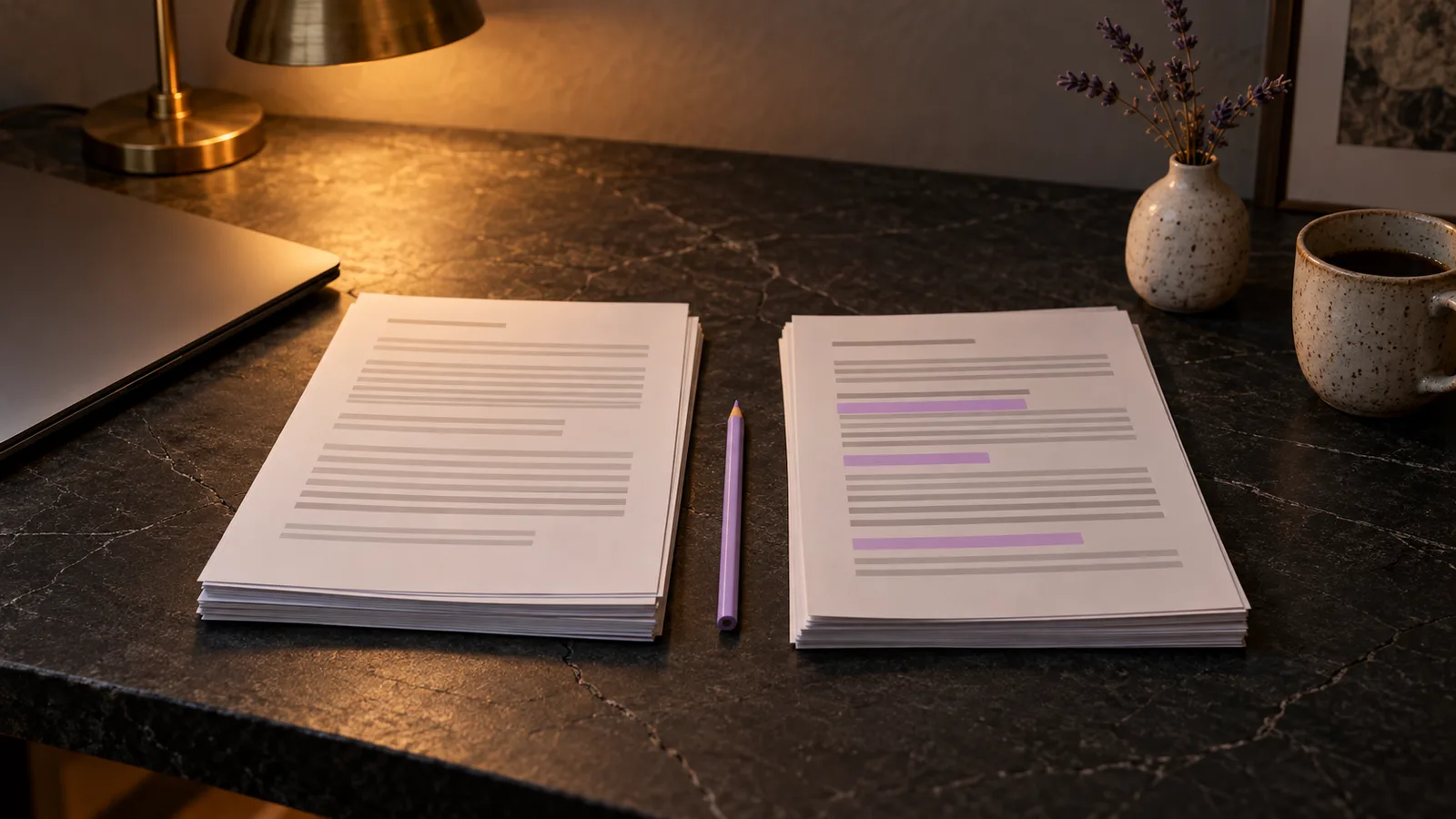
Two Word files: use Compare in Word
Word compares two .docx files itself. On the Review tab, select Compare, then Compare two versions of a document (legal blackline). Choose the original and the revised version. Word opens a third document with every difference shown as a tracked change, and both files stay as they were.
Word also lets you choose whether to show changes word by word or character by character, and whether to include formatting and comments. For two Word files, nothing else is needed.
A PDF or a folder: compare Markdown copies
Word's Compare works on Word documents. Other cases need another route:
- You sent a Word file and got back a PDF.
- Both versions are PDFs, or one of them is a signed scan.
- A new edition of a document set arrived, and you need to know which files changed.
Convert both versions to Markdown, then compare the text. Markdown keeps headings, lists and tables as plain text, so a comparison tool can line up the two versions section by section.
Put the old and new versions in separate folders, such as v1 and v2, with the same file names in both. In MD Factory, add both folders. Each Markdown file is saved next to its original, so the two folders can then be compared file by file. Convert both versions with the same app: two converters lay out the same text differently, and those differences show up as changes.
Scans go through OCR on your PC. OCR mistakes look like edits, so read the section on conversion noise before you trust a comparison that involves a scan.
Compare the copies in WinMerge
WinMerge is a free, open source comparison tool for Windows. It compares two files or two folders.
- Open WinMerge and select File, then Open.
- Choose the old Markdown file on the left and the new one on the right. To compare whole folders, choose the two folders instead; WinMerge lists files that differ and files that exist on one side only.
- Changed lines are highlighted, and the changed words inside each line are marked. Step from one difference to the next and read each in full.
In Markdown, a paragraph is usually one long line. When one word in it changes, the whole paragraph is highlighted, and the word marking inside it shows the actual edit.
If differences in spaces get in the way, set WinMerge to ignore whitespace changes.
Compare word by word with Git
If Git is installed, it compares two files outside any repository and shows the changes word by word:
git diff --no-index --word-diff v1/contract.md v2/contract.mdRemoved words appear in [-square brackets-] and added words in {+curly braces+}. The git diff documentation lists the options. This output is easy to paste into a review note or an email.
Tell real changes from conversion noise
Not every highlighted difference is an edit. Before you act on a change, find it in both original documents. Typical noise:
- OCR misreads in a scan: 0 and O, 1 and l, a missing comma in a number. A misread figure can also hide a real change.
- Line breaks and page headers in a PDF that sit in different places in the two versions.
- A table that was laid out differently in the two files.
Numbers, dates, amounts, names and deadlines deserve a second look in the originals, even when the comparison shows no change there.
What a text comparison does not show
A Markdown comparison shows the text. It does not show changes in fonts, colours, page layout, signatures, stamps or images. If those matter, compare the originals page by page.
The comparison tells you what changed, not what a change means. For a contract, read the changed clauses in full, and ask a lawyer about any change you are not sure of before you sign.