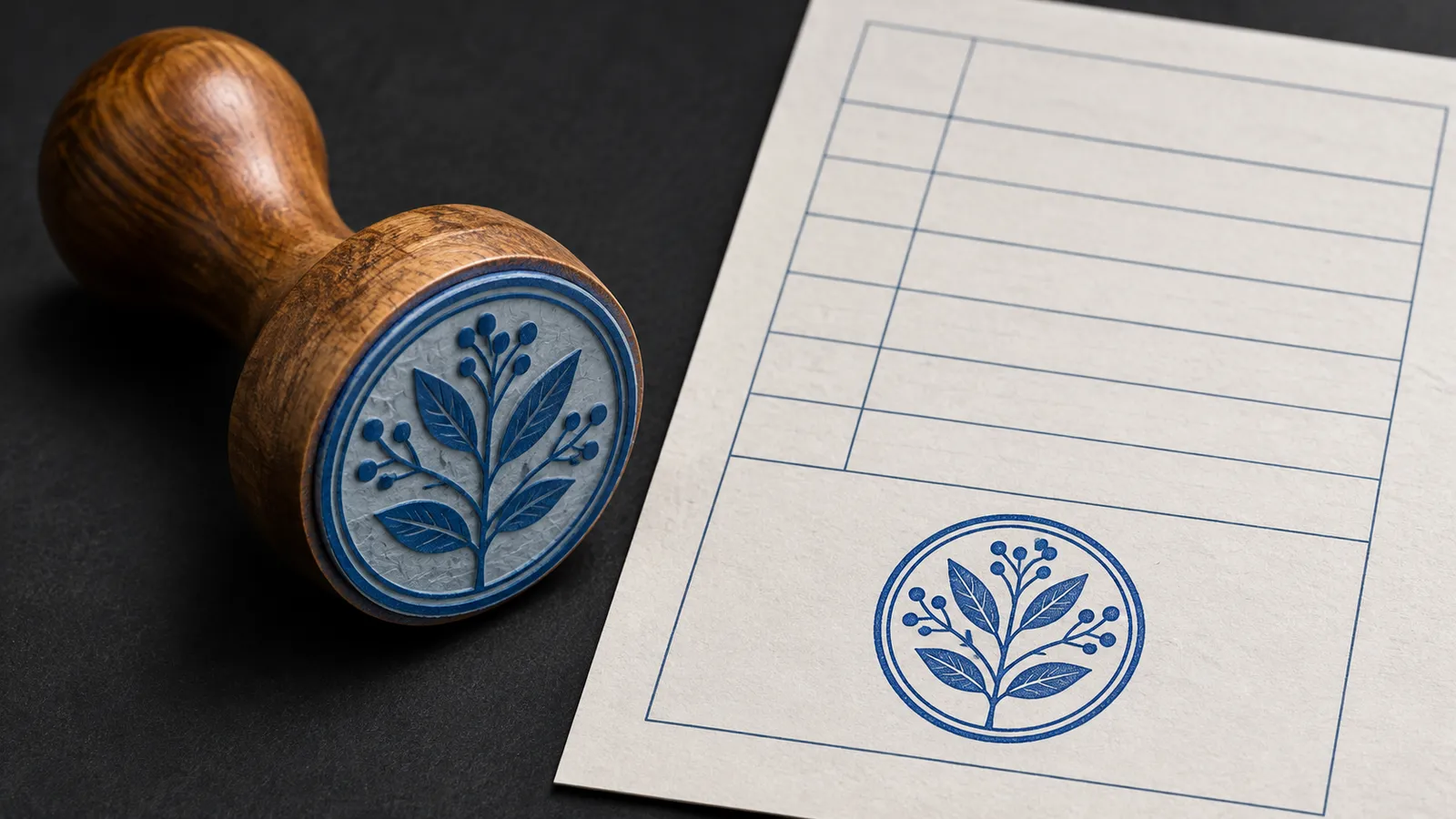
Choose the right impression
Use an image your organization has approved for this document. If your library contains several branches or old versions, read the small lettering around the rim before placing it. A transparent PNG lets the form show through the clear parts. If your only source is a mark on paper, prepare the photograph first and save the cleaned stamp for reuse.
Fit the stamp to the form
Move the stamp into the receiving office’s box and resize it to leave room for the date and handwritten name. Check the printed rules beneath it. A patch of white covering a line usually belongs to the stamp image. Fix its background before you continue. For a two-page delivery note, inspect the page number before repeating the stamp anywhere else.
Check the copy you will send
Export as PDF under a fresh name such as delivery-note-stamped.pdf. Open that file in a PDF reader, jump to the last page and inspect both the fine lettering and the surrounding entries. If the recipient will print it, check the print preview at the intended paper size. Keep the source PDF for corrections.
Questions and answers
Can I change the stamp later?
Save a Paperkiss draft before exporting. Reopen the draft to move or replace the stamp and export another copy.
Does a stamp certify a PDF?
A stamp image leaves a visible impression. If the recipient requires a certificate-based signature, ask which signing procedure they accept.
What if the PDF opens read-only?
A signed, certified or restricted PDF may block editing. Ask the sender for an editable unsigned copy before adding the stamp.