After waking a PC, check Notification Center and the source app. A missing banner alone does not tell you whether the message arrived.
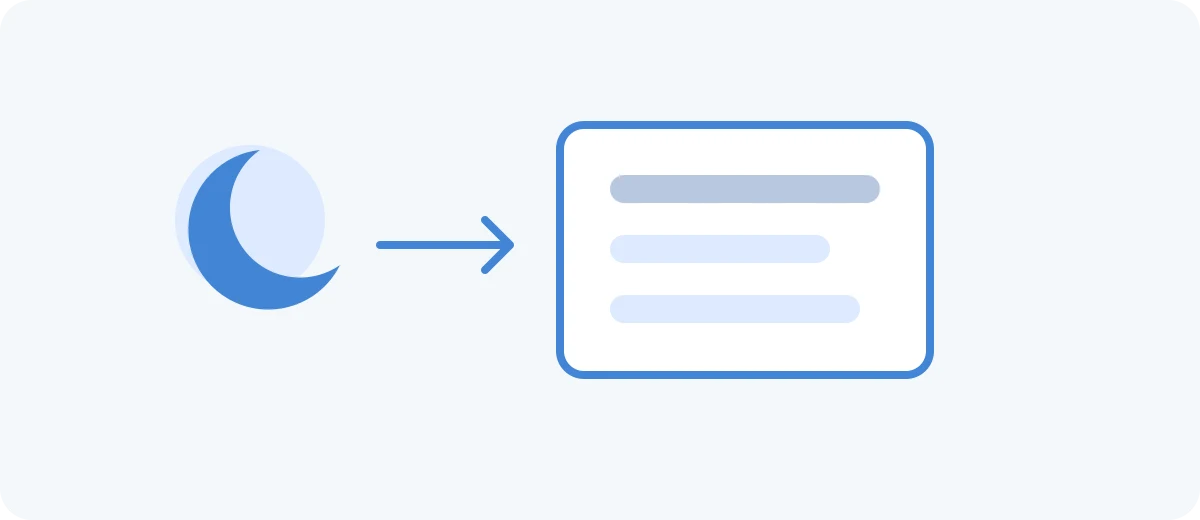
Open the right panel
In Windows 11, press Win+N or select the date and time. Win+A opens Quick Settings. In Windows 10, Win+A opens Action Center. Review the list before clearing it.
Separate delivery from display
Look in the app’s inbox, calendar, or activity feed. If the event is there but no banner appeared, check notification presentation. If the event is also absent, reconnect the app and check its account or sync status first. Windows does not guarantee that every event during sleep will return as a banner.
Check the sender and quiet modes
In Windows 11, open Settings → System → Notifications. Check the app and Do not disturb, including automatic rules. In Windows 10, check Settings → System → Notifications & actions and Focus assist. On a managed PC, ask IT about settings you cannot change.
Reproduce one missing alert
Send a harmless test while the PC is awake, then repeat after a short sleep. Record the app, time, banner result, and panel result. This distinguishes a general notification problem from a wake-related one. For future records, test a history tool’s coverage; it cannot be assumed to recover alerts it never captured.