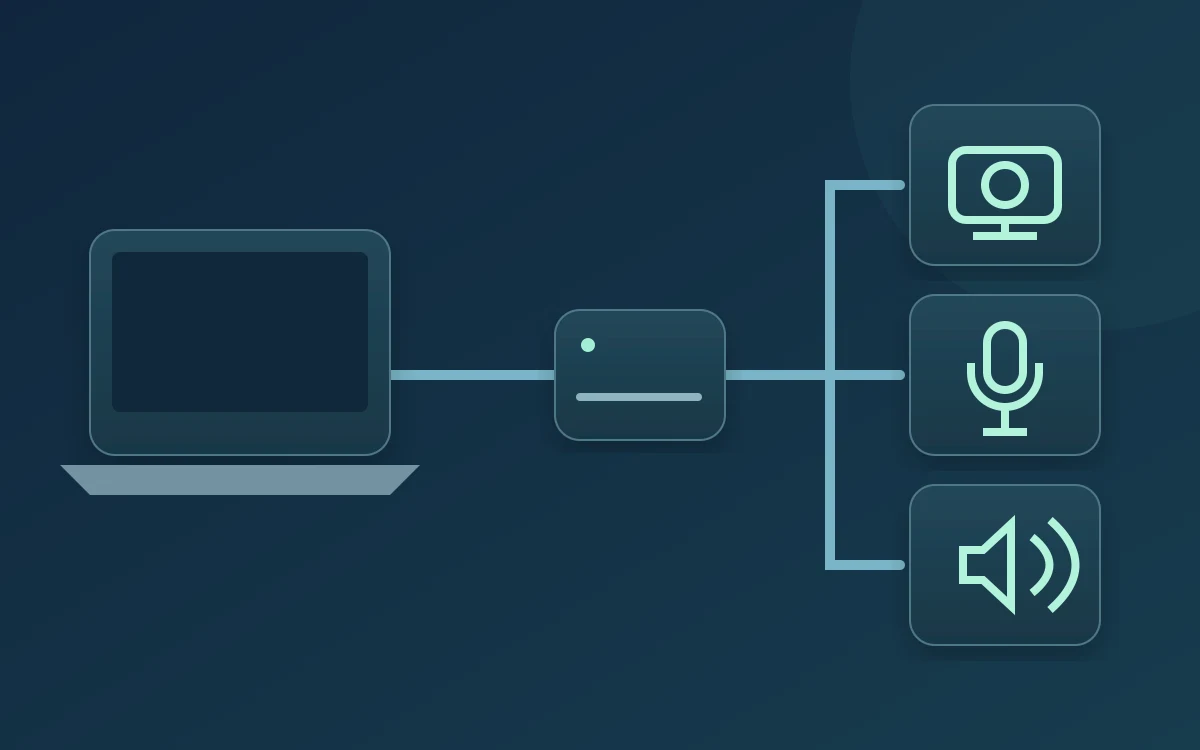
After connecting a USB-C dock, check the camera, microphone and speaker again in the meeting app. A working display or charging indicator does not establish that your call devices are connected and selected correctly.
Check the setup you will actually use
Connect dock power if required, the laptop cable and your usual peripherals. Open the laptop lid or place it exactly as it will be during the call. Confirm the intended webcam has a clear view and its privacy shutter is open. If you plan to close the lid, verify the external camera and microphone rather than relying on the laptop’s built-in devices.
Choose three devices explicitly
In Windows Sound settings, inspect input and output names. A monitor, dock or headset may appear as an audio option. Then choose the intended camera, microphone and speaker inside the meeting app as well. Play its test sound and speak a short phrase. A visible webcam preview does not prove microphone capture or speaker output.
Compare direct and docked connections
If a USB camera or microphone is missing or unreliable, test that same device directly on the laptop with an appropriate connection. Keep the app and other settings unchanged. If direct works but docked fails, investigate the dock, cable, port and attached load. This comparison narrows the path; it does not prove the dock is defective.
Check capability, not just connector shape
Microsoft’s USB-C guidance distinguishes problems with supported features, cables, ports and power. The USB-C shape alone does not establish USB4, Thunderbolt or display capabilities. Follow your laptop and dock specifications and use the manufacturer-recommended cable. Disconnect nonessential peripherals for a comparison, then add them back one at a time. Avoid updating firmware immediately before a meeting.
Run CallReady, then the meeting app
CallReady checks the camera preview, microphone signal and available audio output, and warns when Windows has switched from devices used in the last successful check. Use that as a quick baseline after docking. It does not certify USB bandwidth or prove that another app selected the same devices. Finish with the meeting app’s preview and audio test.
Repeat after the setup changes
Check again after reconnecting the dock, waking the laptop or changing rooms. If time is short, use a known working direct connection and test it before joining. For recurring faults, record dock and laptop models, port, cable, attached devices and which direct test succeeded. Use the manufacturer’s support guidance for planned driver or firmware work.
Frequently asked questions
My monitor works. Does that prove the dock supports the webcam?
No. Video output and the webcam connection are different paths. Check whether Windows sees the camera and whether the meeting app can open it.
Does CallReady select devices inside every meeting app?
Do not assume that. Confirm the camera, input and output in the app you will join with.
Check the docked setup with CallReady, then confirm the same devices in your meeting app.
Explore CallReadyEnglish · Deutsch · Español · Français · Português · 日本語 · Русский · العربية