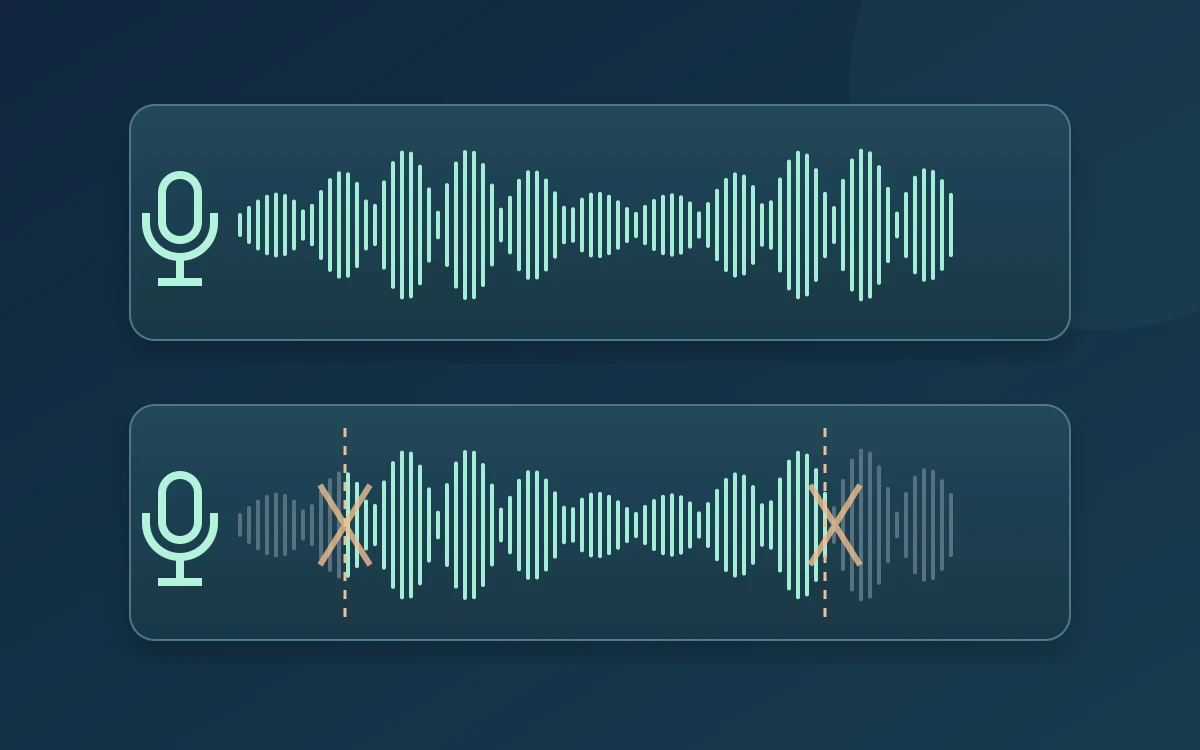
If the beginnings or ends of words disappear, compare a local microphone recording with the same sentence in your call app. Do this before buying a microphone or changing several audio settings together.
Record a phrase with pauses
In Windows Sound settings, confirm the selected input. Use a local recorder, allow microphone access if requested, and say a short sentence at your normal distance. Leave a pause, then begin another sentence softly. Listen for first consonants and the ends of quiet words. Repeat with the same distance and volume; shouting creates a different test.
Compare the call app separately
Choose that exact microphone in Teams, Zoom or your browser meeting settings. Use the app’s available test or a short call with someone who can listen. A clear local recording and damaged call audio point toward the app’s processing or call path, but do not identify a cause on their own. If both recordings lose words, investigate the input, placement and device software first.
Change suppression one setting at a time
Microsoft documents noise suppression in Teams and recommends turning it off for high-fidelity microphones in quiet environments. In a quiet room, compare the same phrase with suppression enabled and disabled where your version offers the control. Restore the original setting if there is no improvement. If your headset or vendor utility also applies processing, test that layer separately. Do not assume stronger suppression always preserves quieter speech.
Distinguish cut words from overload
Missing quiet syllables are different from rough, distorted peaks on loud words. For distorted peaks, reduce input gain or move slightly away, then repeat. For missing quiet starts, keep a steady distance and check that a headset boom is positioned as its manufacturer recommends. Neither symptom alone proves that the microphone hardware is broken.
Use CallReady as a starting check
CallReady checks for a microphone signal and flags input that is too quiet or clipping. It also remembers devices from the last successful check. These checks can reveal a wrong input or level problem; they do not assess word intelligibility or reproduce Teams processing. Always listen to a recording or have a person confirm the sentence in the actual app.
Keep a useful fault record
Note the microphone name, connection, app version, processing settings and whether the local recording was clean. If possible, compare the same microphone directly on the laptop instead of through a hub. If the failure follows one app, take that evidence to its support; if it follows the device across apps, check the manufacturer’s driver and firmware guidance.
Frequently asked questions
Does a moving microphone meter prove my words are complete?
No. It confirms a signal, not that quiet consonants or word endings remain intelligible. Listen to the result.
Should I leave noise suppression off permanently?
Only if your own comparison supports that choice for the room and microphone. Repeat the check when the environment changes.
Check the selected input and microphone level with CallReady, then verify speech in your meeting app.
Explore CallReadyEnglish · Deutsch · Español · Français · Português · 日本語 · Русский · العربية