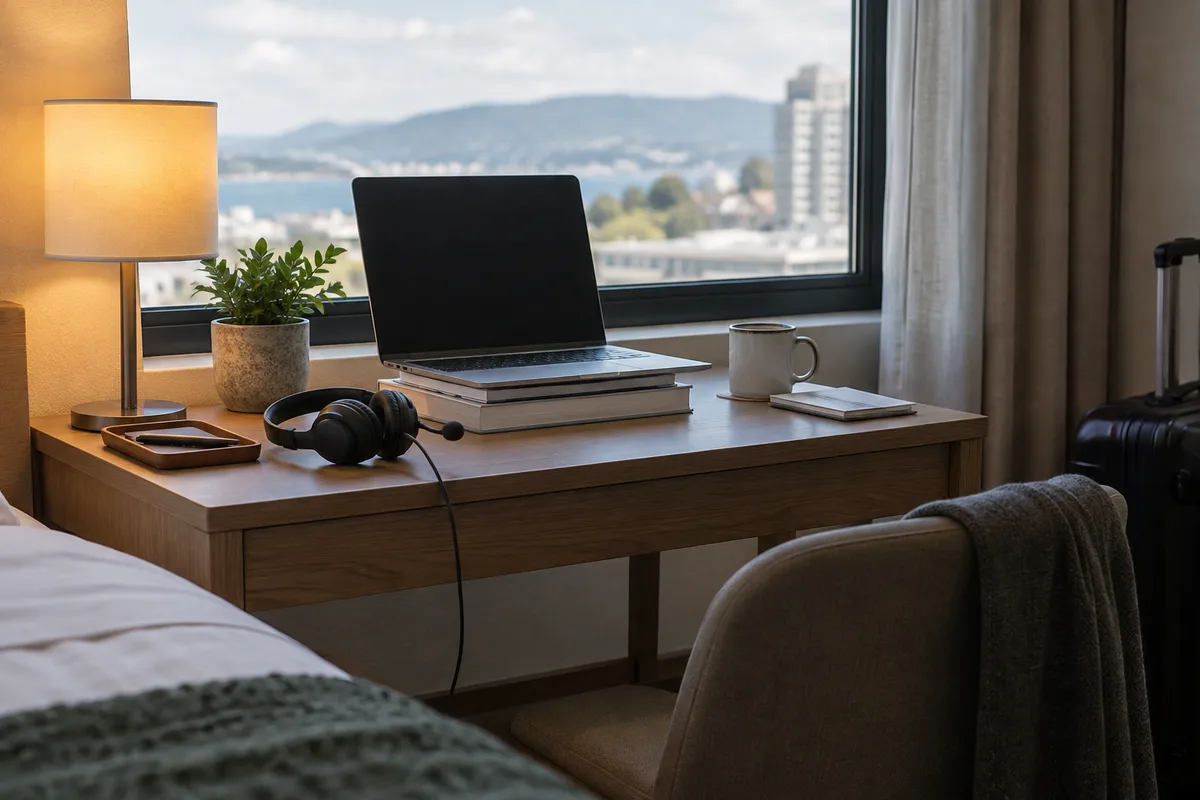
Before a video call in a hotel or coworking space, check the connection, selected microphone and speakers, camera framing and room noise from the exact seat you will use. Then confirm the device choices inside the meeting app.
A setup that worked at home is not evidence that today's desk is ready. The room, network and attached devices have changed. Prepare a fallback before the meeting rather than deciding what to do after the other person cannot hear you.
Finish the room setup before testing
Choose a place where you can speak without exposing the conversation to everyone nearby. Check what the camera sees behind you. Move visible documents out of frame and close windows that contain customer information before sharing a screen.
Place the laptop at a usable height and face a light source. Test with the curtains, desk lamp and screen brightness you will actually use. A preview in an empty room can look different once you sit down.
Connect to the network and test at your seat
Complete the hotel's sign-in page before starting the call. Open the meeting link far enough in advance to discover an account or browser permission problem. Follow your organisation's rules for public networks and required VPN use; do not disable security controls as a call-quality fix.
Check more than a download-speed number. Microsoft's Teams call-health documentation separates throughput, round-trip time, packet loss and jitter. A short pre-call measurement can identify a problem, but it cannot guarantee that a shared network will remain stable.
Prepare an allowed alternative: another seat, a permitted wired connection, or a mobile hotspot within your data plan. Test it before the call. If neither connection is usable, let the other person know and agree on an audio-only or rescheduled meeting.
Run the device check after the last change
| Check | What you confirm | If it fails |
|---|---|---|
| Microphone | The intended input receives normal speech without clipping | Select the correct device and retest its level |
| Speakers or headset | You can hear the output through the intended device | Check routing, volume and the physical connection |
| Camera and light | Your face is visible in the final position | Adjust placement and light, then preview again |
| Network | The chosen connection is available and reasonably stable during the check | Test the fallback or change the meeting plan |
CallReady checks the Windows-level setup, including camera, microphone level, output availability, lighting, changed devices and connection measurements. It can flag a dock or headset change since the previous successful check.
Output-device availability does not prove you can hear it. Listen through the headset yourself. CallReady measures microphone level rather than recording a full speech-quality sample, so use the meeting app's own test where available.
Confirm the app's devices and permissions
A successful Windows check does not guarantee the device selected in Teams, Zoom, Meet or another app. Open that app's audio and video settings, select the same intended devices and check the preview or test call. The Teams and Zoom testing guide covers that step.
If you switch networks, reconnect a headset or move desks, repeat the affected checks. The check that matters is the one for the setup you are about to use.
Keep a short fallback note
Write down the meeting link, an agreed backup contact method and what you will do if video fails. Have essential material open locally where your work policy permits. That reduces the number of decisions you need to make during a connection problem.
CallReady analyses camera and microphone input locally; its connection test sends measurement traffic to Cloudflare. Its privacy policy explains that distinction. The measurement tests a route to its endpoints, not every possible route to the meeting service.
Frequently asked questions
Does a good speed test guarantee a good call?
Should I check again after connecting a dock or headset?
See the product features and check whether it fits your workflow.
Get CallReady