MD Factory recognizes text in image files on your Windows PC and saves the result as Markdown. For a collection of screenshots or photographed pages, convert the folder, check each transcription against its picture and then organize the verified passages into notes you can search and reuse.
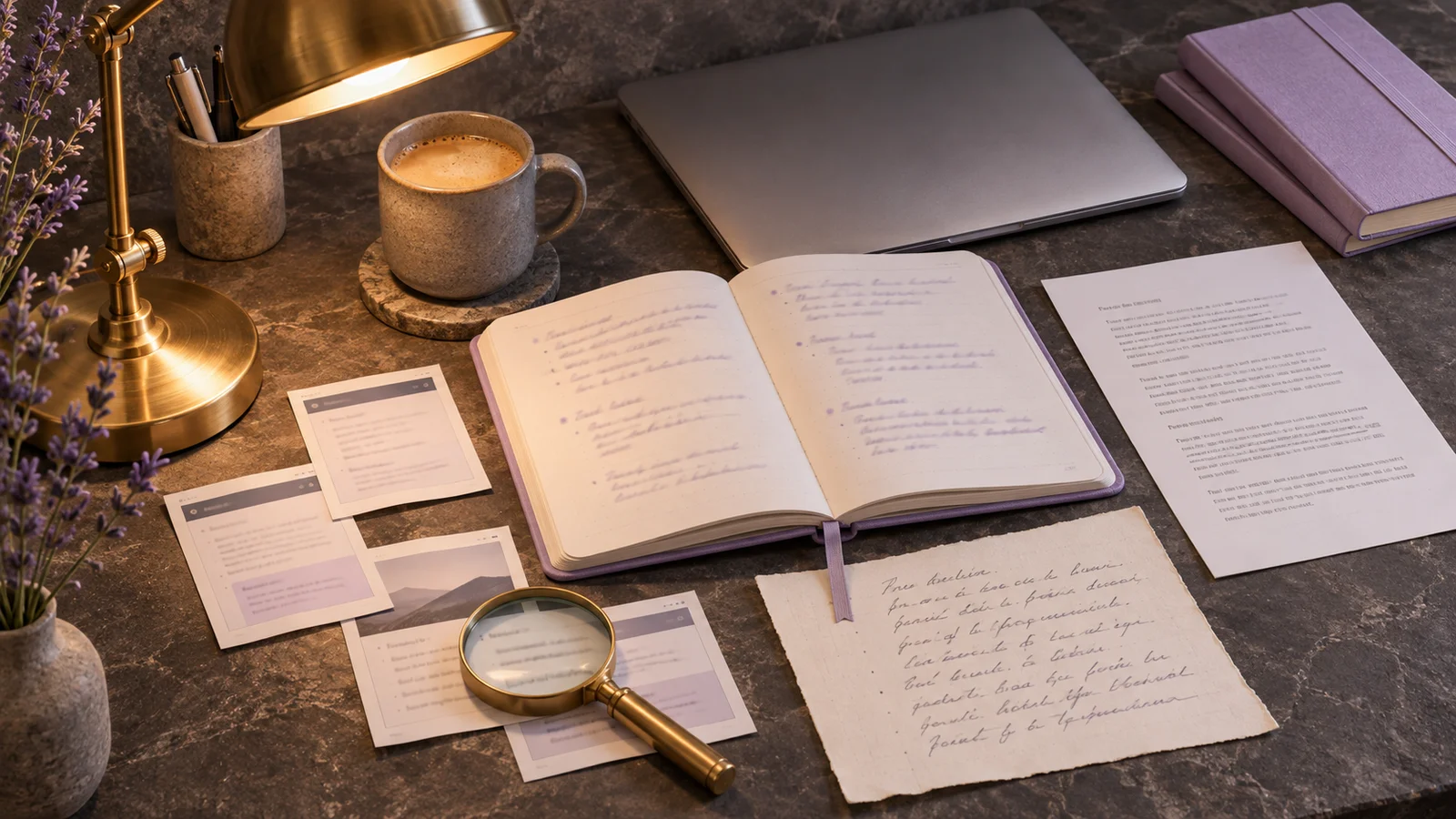
Prepare a collection you can trace back to the pictures
A folder of screenshots is easier to review when each file has an informative name. Keep the source pictures and use names such as 01-setup.png and 02-export.png for a sequence. Numbering is your reference system; do not assume a converter will decide the intended order of your notes.
For a screenshot, retain the heading and any warning that qualifies the text. For a photographed page, keep it upright, sharp and evenly lit. Crop a working copy when you need one passage, while preserving the complete original for context. Enlarging a blurred word does not restore its missing detail.
Recognize the pictures and save Markdown locally
- Open MD Factory and add the image files, or add the folder containing them.
- Let conversion finish. Each successfully converted picture receives its own Markdown result; adding a folder does not by itself turn every picture into one finished note.
- Open the result beside the source. Check any review warning and confirm that text was actually recognized.
- When the selected OCR language does not match the source, choose the source language from the available options and retry the affected file.
MD Factory supports PNG, JPG/JPEG, TIFF, WebP, BMP and GIF image files. Recognition is local, and the original picture is not edited. The normal result is saved beside the source; if that location cannot be written to, the app asks you to choose another folder. The existing image-conversion guide explains individual formats in more detail.
For HEIC or HEIF photos, save a JPG copy first. GIF conversion reads only the first frame.
Keep the recognized text and its visual reference together
For a standalone picture, the Markdown output contains a reference image followed by the recognized text. The saved picture asset lets you compare an uncertain word or number with the source. Move the Markdown file and its accompanying image assets together so those references continue to work.
OCR produces text from the picture; it is not a promise to reproduce the page's original fonts, columns or visual layout. A screenshot of a table still needs its row labels, values and units checked together. A heading that looks obvious in the image may need a Markdown heading added during your editing pass.
Check the details that make the note usable
| Image content | What to compare | What to preserve |
|---|---|---|
| Settings or instructions | Option names, step order and qualifications | The heading and the condition attached to a step |
| Numbers or a small table | Digits, signs, decimal separators and row relationships | Units, labels and footnotes |
| Names, links or technical identifiers | Similar characters such as O/0 and l/1 | The exact spelling needed for the task |
| Mixed-language text | Script, accents and changes of language | The source wording until you deliberately translate it |
A completed conversion is not a character-by-character guarantee. Mark an unreadable passage for review rather than inventing it. If a diagram communicates the main idea through arrows or shapes, keep the picture: recognized labels alone may lose the relationship between them.
Build your notes from the checked passages
Create a separate working note after reviewing the exports. Add a useful title, group related excerpts under headings and record the source filename next to passages you may need to check again. Keep transcription separate from your own interpretation, especially when the source describes a procedure or a decision.
For a course or project, an outline might be Setup, Export and Open questions. Put the corresponding verified passages under those headings and keep unresolved items in the last section. MD Factory supplies the converted material; it does not automatically summarize the collection, choose the topic structure or answer the open questions.
A small note template you can create after reviewing the exports:
# Project notes
## 01 — Setup
Source: 01-setup.png
[Verified passage]
## Open questions
- [Unresolved point]
Share only the text and pictures the next task requires
Search the finished note for a distinctive phrase and open its linked images after moving it. If you use an AI tool, provide the checked text relevant to your question and identify anything still uncertain. Use a service approved for that material; local OCR does not make a later upload local.
Review names, account details and other private information in the pictures as well as the text. Editing a name out of Markdown does not redact it from the linked image. When only text is needed, share the reviewed text deliberately instead of attaching the original screenshot collection automatically.
Frequently asked questions
Does MD Factory recognize text or only embed the image?
It uses local OCR to recognize text and includes a reference image with the Markdown result. An image without readable text can produce a result that needs review.
Can I convert a whole folder of screenshots?
Yes. MD Factory can process a folder, including subfolders, and creates a result for each supported file. You still choose how to organize the checked results into notes.
Does OCR translate the text into English?
Recognition and translation are different tasks. Choose the language of the source text for OCR; translate the reviewed text separately if you need another language.
Can I send the result straight to an AI assistant?
Check the transcription and private information first. Share the passages and images the task requires, and keep uncertain text clearly marked.