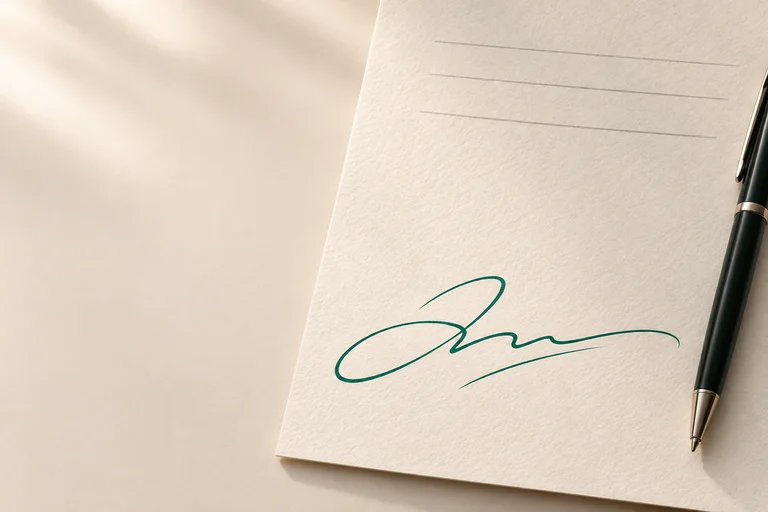
Check the mark against its reference
Start with the original photo, drawing, or approved library master. Compare the complete outline, small dots, crossing strokes, and spaces inside letters. A preparation that looks cleaner can still have lost a faint connection or changed a stamp number. Focus on preserving the original content rather than making every stroke uniformly dark.
If a detail is missing because the source was blurred or cropped, choose a better source instead of inventing it. For a typed signature, check the exact spelling, selected text language, and typeface preview. Some scripts use compatible fallback fonts, so a style name alone is not proof of how every character will look. Inspect the actual characters that will appear in the document.
Inspect transparency on light and dark areas
View the prepared image on white, grey, and dark inspection backgrounds. Look for a white rectangle, paper islands inside loops, and a pale fringe around the ink. Switch back to the source when deciding whether a soft edge belongs to the handwriting. Do not erase fine strokes merely to make the checkerboard look empty.
Review both close up and at the final placement size. A very large preview helps find mask defects, but it does not tell you whether a small signature will remain readable on a page. Recolouring and reduced opacity can change that readability. If you need a new colour, save a variant and check it against the actual document background, not only the studio preview.
Check position, proportions and nearby content
Fit the signature within its intended area without covering a printed name, date, checkbox, or instruction. Keep proportions linked while resizing. If you rotate the mark, inspect its outermost stroke again: a corner of the rotated artwork can extend beyond the page or overlap something that was clear before rotation.
The developing Paperkiss editor includes physical placement properties and an out-of-bounds check. Those controls help locate the artwork, but a technically in-bounds signature can still sit over the wrong line. On a shaded form, check that the empty image background really shows the form beneath it. For stamps, inspect small identifying text as well as the outer border.
Review dates and repeated pages
Confirm the intended calendar date and its chosen display format. If the form specifies day/month/year, do not assume a different slash format is equivalent. The Paperkiss workflow stores a selected fixed date; still compare what is shown in the page preview with what the document asks for. Existing text in the PDF and newly placed text are separate things.
If you repeated an element, visit every target page and at least one page outside the range. Mixed page sizes and orientation can change the effective placement. Look for duplicate overlapping copies after another repeat action. A count of selected pages is useful, but it is not a substitute for seeing each required signature area and confirming that no other area was covered.
Review the saved output and keep the right files
Choose PDF for a completed PDF document and export to a new filename. If you need to continue editing, save a local draft as a separate step. Paperkiss remains in development; its implemented PDF path adds visible artwork and does not provide certificate-based signing. Check the recipient’s required signing workflow before treating the output as ready to send.
Reopen the exact exported file from its destination folder. Confirm its page count, signature position, colour, and nearby text. If the source contained searchable text, try a short selection as another check; the inserted signature image does not become searchable handwriting. Keep the original, the finished output, and any draft clearly named so you share the reviewed PDF rather than an earlier version or an isolated signature asset.
Questions and answers
Is a larger exported signature always better?
No. More pixels cannot restore missing source detail, and a large preview can hide whether the mark works at normal document size. Judge the actual intended placement.
Does the editor preview prove the exported file is correct?
No. Reopen the saved output and inspect it. A filename, background choice, page selection, or later placement change may differ from what you expected.
What should I do if a thin stroke disappears?
Compare with the original and revisit the mask or source. Restore real ink locally when possible; do not redraw missing handwriting just to make the result look complete.