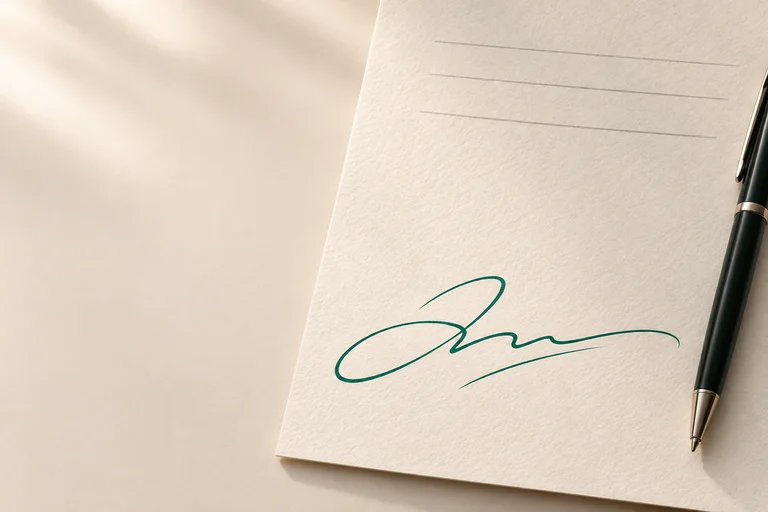
Understand what a signature image contains
A photographed, drawn, or typed signature can be placed on a PDF as visible artwork. It may look like handwriting or a stamp, but its appearance alone does not identify who applied it or show whether the document changed afterwards. A copied image can look identical on another page, so inspect the requested process rather than judging the technology by the flourish.
Preparing an image can still be useful work: removing paper, preserving thin strokes, correcting perspective, and choosing an appropriate placement all improve how the mark sits on the document. Those steps concern the artwork. They do not create a digital ID, a certificate chain, or a cryptographic validation result. A transparent background and professional presentation should not be described as proof of authenticity.
Understand what certificate-based signing adds
Cryptographic digital signing uses a private signing key and a corresponding verification mechanism. Certificate-based PDF workflows connect the signing identity with a digital ID and certificate information. A compatible application can inspect the signature and report validation information, including whether the signed content has changed. The result depends on the signature, the document, and the verifier’s trust configuration.
Adobe’s documented certificate-signing workflow requires selecting or configuring a digital ID rather than merely inserting a handwriting picture. A visible appearance can accompany a certificate signature, but the image is not what provides the cryptographic check. Conversely, a PDF can contain signing information that is not obvious from a casual look at the page. Use the viewer’s signature tools when checking such a file.
Ask questions that distinguish the workflows
Before choosing an application, ask the recipient what they expect to receive. “Please sign this PDF” may be shorthand for several processes. A specific signing portal, a named certificate requirement, or instructions to validate a digital signature are more useful than a generic example showing a handwritten mark. Follow the stated process rather than substituting an image because it is easier.
For a concrete check, ask whether a visible signature image is accepted, whether the recipient expects a certificate signature, and whether they provide a required tool or submission route. Keep the answer with the document instructions. This is a workflow clarification, not a legal conclusion about electronic signatures. Different requirements should be resolved before you spend time preparing and placing the artwork.
Treat an already-signed PDF as a separate case
If a PDF already carries a certificate signature, inspect that signature in an application with validation tools before changing the file. A document may specify which later changes are permitted. Do not assume that placing another image preserves a previously reported validation state, and do not make a screenshot or flattened copy simply to hide the presence of existing signing information.
Keep the received original and request an appropriate editable or signing copy if needed. Paperkiss currently checks for PDF signatures and editing restrictions and blocks its editing path for those files. That is a product safeguard, not a certificate-validation service or a promise about every signed PDF. The remaining native acceptance work is recorded as part of development.
Know which job Paperkiss is being built to do
Paperkiss is a Windows app in development for local preparation of photographed signatures and stamps, a reusable library, and visual placement on PDF or image documents. Its export adds visible artwork to a separate output. Certificate issuance, private-key signing, and PKI validation are outside its first-release scope. There is no released download or online signing service being offered by this guide.
Use the image workflow when it matches the recipient’s requirements, review the finished file, and keep any editable draft separately. If certificate signing is required, choose a workflow that explicitly provides it and check the result with suitable validation tools. Do not infer legal acceptance from either a polished image or a successful technical validation message; confirm the specific submission requirements with the recipient.
Questions and answers
Can a certificate signature also look handwritten?
Yes. A visible appearance may accompany certificate signing. The underlying signing information, not the handwriting image, distinguishes that technical workflow.
Does Paperkiss create certificate-based digital signatures?
No. Paperkiss v1 is being built for visual document signing and preparation of reusable artwork. PKI signing and certificate validation are outside its scope.
Can I tell which type a PDF uses from a screenshot?
No. A screenshot shows the page appearance, not the underlying signing data. Inspect the original PDF with appropriate signature tools and follow the recipient’s instructions.