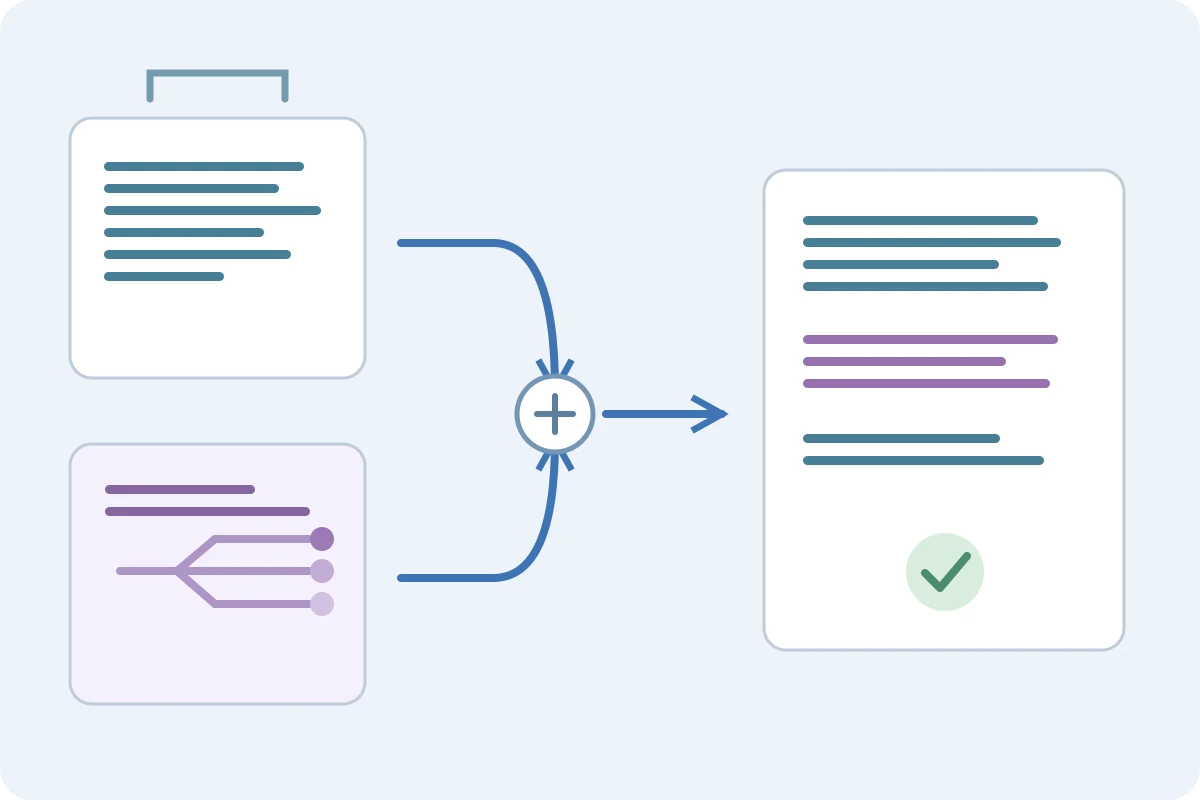
Use text expansion for wording that must stay exact, then use predictive autocomplete for the sentence you are writing now. Both can fit one workflow if you decide which tool handles each part and check their keyboard behavior in your actual editor.
Separate fixed wording from a new continuation
An address, approved support clause or standard closing belongs in a saved snippet. A response to a new question may need an original sentence. A prediction proposes a continuation from the current context; it does not establish a deadline, price or policy. Keep those facts in the reviewed snippet or type them from a verified source.
One reply, two kinds of help
Suppose a customer asks for a document. Insert your approved instructions with a distinctive shortcut such as ;docsteps. Then write the personal explanation yourself and accept a suggested continuation only if it matches the case. Finish with your saved closing. The sequence preserves the reusable core while leaving room for a relevant answer; it is an example workflow, not a measured speed improvement.
Typeahead already includes snippets
Typeahead's product page documents custom snippets and dictionary completion alongside sentence suggestions. The snippets and dictionary do not require a downloaded AI model. Sentence suggestions run locally after the model download. You may therefore be able to use both approaches in one Windows app rather than installing a second expander. Check its current controls and your required snippet behavior before moving an existing library. Typeahead.
Give each trigger a clear job
Typeahead documents Tab as the default accept key and offers a custom accept key. A browser expander may also use Tab, Space or Enter to finish a shortcut. Begin with one tool enabled, then enable the other in a draft. Check a shortcut at the end of a line, ordinary Tab navigation and Enter in a chat. If two tools react to one key, change a documented setting or disable one for that application. Typeahead.
Keep one owner for each shortcut
Avoid having both tools expand ;sig. Pick one library for exact phrases and remove or rename duplicates in the other. Keep a list of where the library lives and how you export it. When testing an import, use a small non-sensitive sample first. Do not assume another tool's macros, placeholders or formatting survive a transfer unchanged.
Review facts after accepting a prediction
Read the whole message before sending, including the boundary between saved and generated text. Check names, numbers, attachments, promises and tone. A fluent continuation can contradict the fixed paragraph above it. If the suggestion is unsuitable, keep typing instead of accepting it. For a field that must contain exact approved text, use the reviewed snippet without adding predicted wording.
Choose a scope you can maintain
Try the combination in one frequent writing task before enabling it elsewhere. Typeahead describes per-app controls; a browser extension has its own site permissions and compatibility limits. Local prediction does not make the receiving website local or change its data policy. Keep passwords and other secrets out of snippet libraries, and use neutral draft text to evaluate an unfamiliar tool. Typeahead.
Frequently asked questions
Can one app provide predictions and snippets?
Typeahead documents both custom snippets and sentence suggestions. Check whether its snippet controls meet your requirements.
Do saved snippets need the AI model?
Typeahead says its snippets and dictionary completion work without a model. Sentence suggestions require the model download.
Can two typing tools run together?
Possibly, but overlapping triggers need checking. Try your actual editor in a draft, then change keys or disable one tool where they conflict.
Sources checked 3 November 2026