Review the exact copy you plan to send, after every replacement and export. Search for identifiers, read the surrounding facts and check what the file still contains. A clean search result alone does not establish anonymity.
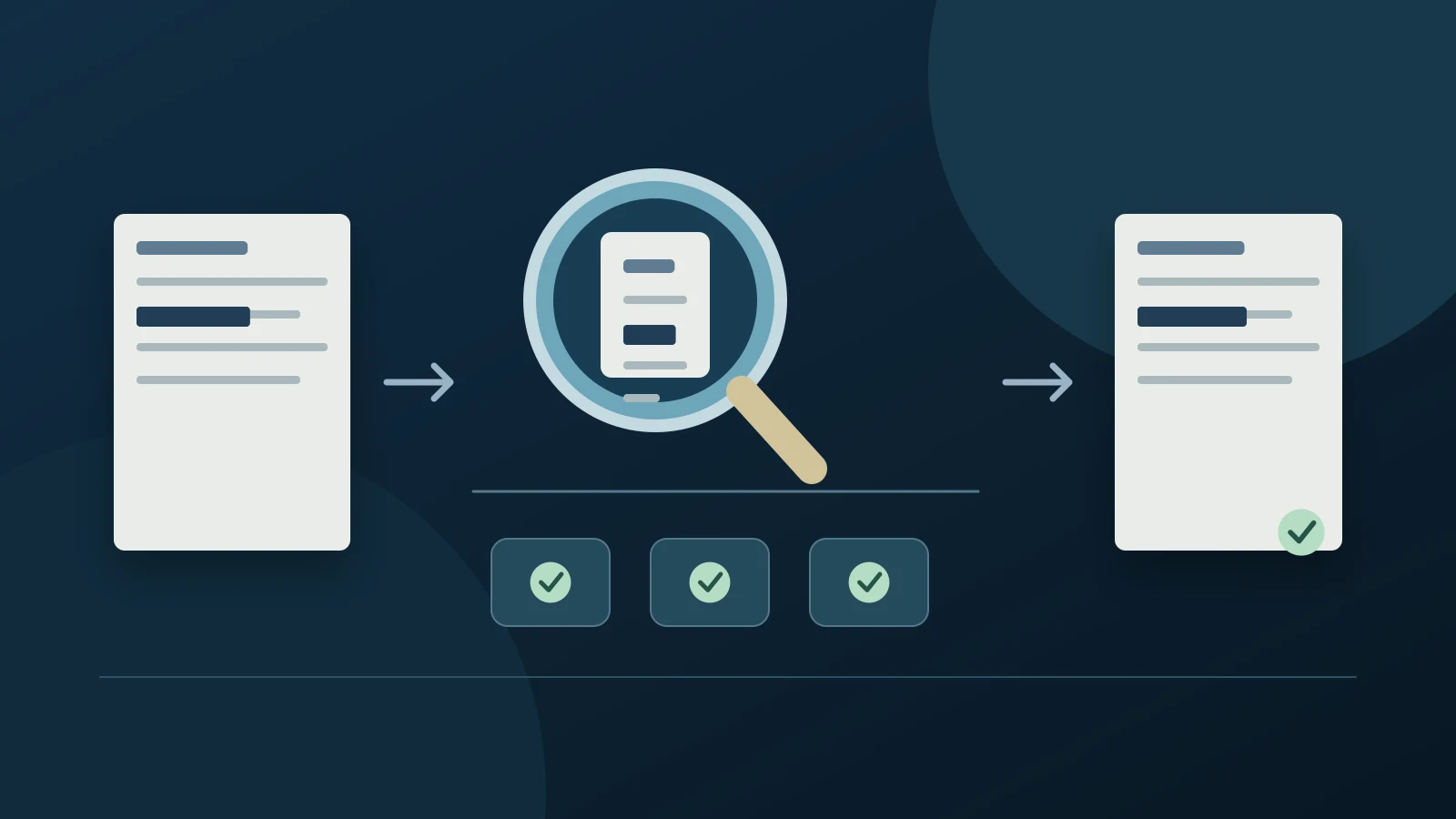
Start with the destination copy
Keep the original and the replacement key in your controlled workspace. Open the exported file in the application you will use to send it; do not review only the preview in the cleaning tool. Give the copy a neutral filename.
Decide what the AI needs: a clause, a timeline or a whole document. If two paragraphs answer the question, remove the rest before you inspect anything else. This reduces both disclosure and review work.
Search in several passes
Make a local checklist of full names, surnames, initials, email addresses, phone numbers, account references and client-specific project names. Search the finished copy for each one, including spelling variants and transliterations. Search shorter distinctive fragments as well as exact phrases.
A zero-result search can mean the text is not searchable. Try selecting a sentence from a scanned page and copying it into a local text editor. If there is no usable text, inspect the page visually; optical character recognition can also misread characters.
Read for identity hidden in the story
Replace a name and the remaining story may still identify its subject. A rare job, a precise date, a small location and a public dispute can point to one person together. Ask whether a colleague or client could recognise the case from those details. Generalise or omit facts that the task does not require.
Keep useful relationships intact: CLIENT_1 and CLIENT_2 must not become the same person. Read pronouns, quoted messages and tables after replacement to make sure the AI will not receive a misleading account.
Inspect the container, not only the page
If you send a PDF, inspect comments, attachments, metadata and searchable text as well as the visible page. Adobe documents separate sanitizing tools for hidden content. A dark rectangle or a comment placed over a name is not a sufficient check.
For a text task, a newly created plain-text or Markdown copy can avoid carrying the original document's embedded objects. Its actual words, filename and any extra pasted material still require review. Do not include the replacement key.
Use ClientSafe as a review workflow
ClientSafe prepares a separate text copy and uses consistent placeholders within a case. Review its detected matches, reject false positives and add missed items before exporting. Then repeat the searches on the exported copy. Detection assists the review; it does not prove that every identifying detail is gone.
A reversible placeholder scheme is pseudonymization. Whether disclosure is permitted also depends on your organisation's rules and the chosen AI service. Removing names does not override those requirements.
Make the last check at the send point
Read the prompt and attached files together. A clean document can be paired with an identifying prompt, an old attachment or a filename that gives the client away. If a reviewer changes the copy, check that new version again.
For sensitive work, ask an authorised second reader to inspect the final version locally. Record which version was reviewed and what remains intentionally included. If you cannot resolve an identifying detail, leave it out or use an approved alternative workflow.
Frequently asked questions
Is searching for the client's name enough?
No. Check variants, other identifiers, indirect clues and hidden file content. Also confirm that the search can read the text.
Does a reviewed copy make every AI upload acceptable?
No. Review reduces disclosure risk; it does not replace authorisation, confidentiality obligations or checks on the AI service.
Sources and further reading
Reviewed 3 November 2026