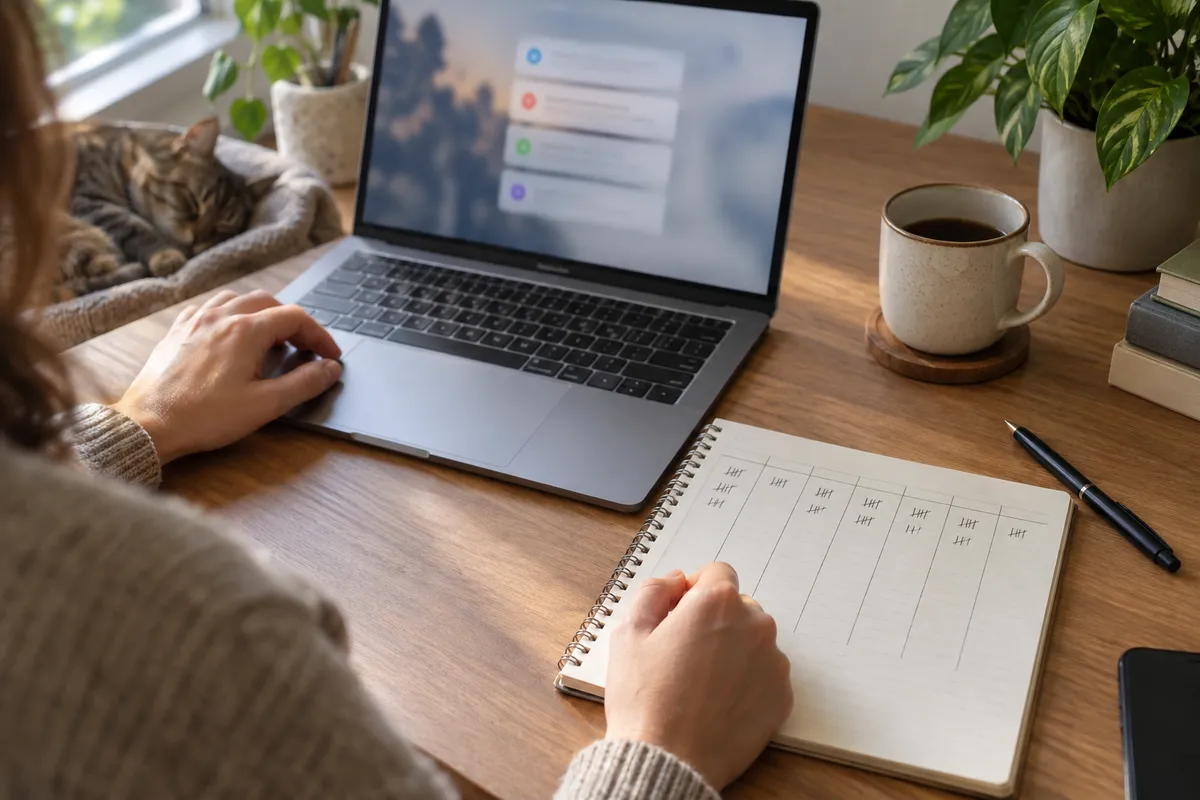
Audit Windows notifications by recording three days of your current setup, changing selected settings on day four, then observing three more days. Count captured alerts by sender and keep a separate tally of interruptions. At the end, keep the changes that made work quieter without hiding information you needed promptly.
You might want direct messages while finding recommendations and promotional alerts annoying. A Reddit discussion about irrelevant notifications describes that tension. It is a reason to inspect your own alerts, not evidence of how many notifications everyone receives.
This plan focuses on Windows 11. The seven-day schedule is an editorial worksheet, not a validated productivity test. It produces a list of settings to keep or undo; it does not establish how much time notifications cost you.
Download the two audit worksheets
- Daily observation log (CSV): seven blank daily rows for observation hours, captured records, interruptions and missed urgent items.
- Sender decisions (CSV): record what to keep, quiet or disable, including the old setting so you can undo a change.
Open these blank templates in a spreadsheet or use the headings in a notebook. They contain no notification content or macros. Leave a count blank when you did not measure it. Enter zero only when you observed the period and found none.
Before day one: choose the scope and protect private text
Choose observation hours that you can repeat, such as the same morning work block. Record the hours actually covered each day, including gaps when the PC or logger was unavailable. Note unusual meetings, weekends or deadlines; a quiet Saturday is a poor comparison for a busy Monday.
Use your own Windows account. A notification log can contain message previews, names and other private text. Notification Logger's privacy policy describes local storage and CSV/JSON exports. An exported file can leave your PC if you save it in a synced folder or share it. For this audit, keep raw data in a private folder on the PC and share only aggregate counts if needed.
Write down which alerts you cannot afford to miss: for example, a meeting reminder or a message you are responsible for answering immediately. Follow workplace requirements for security and incident alerts. Start with optional senders when testing quieter settings.
Check what Notification Logger can capture
Open Notification Logger, grant notification access when prompted, and test an ordinary reminder with harmless text. Check that it appears in Windows Notification Center and then in the logger. If it is missing, resolve access or delivery first using the notification troubleshooting guide.
Microsoft documents that the Windows notification listener reads current app notifications with your permission, including their sender and creation time. Revoked access can return an empty list. A record therefore tells you what the app captured, not that it saw every notification generated during your day.
Do not count in-app badges, chat popups or phone alerts as captured Windows notifications unless they actually appear in the log. A browser may also appear as the sender for several websites. Look at a few records locally to identify the source before changing permissions for the whole browser.
Check the retention setting so the records you need remain available through day seven. Exclude any record whose creation time falls outside your observation window, even if it first becomes visible in the logger during the audit. The app manual covers the available history controls; names and export layouts can vary by installed version.
Follow the seven-day schedule
| Day | Action | What to write down |
|---|---|---|
| 1 | Test capture, then observe your current setup | Observation hours, active quiet settings and any capture gaps |
| 2 | Repeat the same observation hours | Captured rows and interruptions you noticed |
| 3 | Finish the baseline period | Counts by sender and any urgent item noticed late |
| 4 | Review senders and change selected settings | The old setting, new setting and result of a harmless test alert |
| 5 | Observe the quieter setup | Hours covered, interruptions and missed urgent items |
| 6 | Repeat; check the apps you quieted | Whether information was still available when you needed it |
| 7 | Compare the two periods and decide | Changes to keep or undo, plus the next review date |
Use days one to three as the baseline and days five to seven as the comparison period. Keep day four separate because its settings change partway through the day. If the periods have different workloads, extend the observation with comparable workdays before drawing a conclusion.
Count records once and note interruptions separately
At the end of each observation period, use the logger's date and sender filters to review available records. Record the number for that day's observation window, excluding alerts you created to test delivery or capture. If you export a cumulative history every day, do not add the files together: the same record may be present in several snapshots.
For a spreadsheet count, use one export containing the audit period, or separate exports with non-overlapping time windows. Identify the sender and creation-time columns by their headings. Check a known test alert to confirm how the timestamp displays on your PC before grouping records by hour.
In desktop Excel, Microsoft's import instructions describe Data > Get Data > From File > From Text/CSV. Preview the columns before loading. Keep notification text as text, and avoid pasting raw message contents into cells as formulas.
To count senders, select the imported table and use Insert > PivotTable. Place the sender field in Rows and the same field in Values, with the summary set to Count. Sort the counts from largest to smallest. Microsoft explains the setup in its PivotTable guide. You can also tally sender counts manually from the filtered log.
A logged row does not show whether a sound played, a banner appeared or you looked away from work. Keep a small tally for interruptions you notice: one mark each time an alert causes you to stop the task. Decide beforehand how to handle a burst of several alerts, and use the same rule throughout. This tally is your observation; Notification Logger does not measure it.
On day four, decide what each sender deserves
Review a few records from the busiest senders. Ask whether the content required immediate action during your observation hours. Volume alone is not a reason to silence an app: a busy support inbox may be part of the job.
| What you found | Change to consider | Check afterward |
|---|---|---|
| Time-sensitive reminders or required alerts | Keep immediate delivery; review priority settings if using Do not disturb | A harmless test still reaches you promptly |
| Useful updates that can wait | Turn off banners and sounds for that sender while retaining Notification Center entries | The updates remain available when you review them |
| Recommendations mixed with direct messages | Look for category or channel controls inside the originating app | Direct messages still arrive; optional categories are quiet |
| An unwanted website sending browser alerts | Review that site's notification permission | Other websites you need can still notify you |
| A sender with no useful alerts for your needs | Turn off its notifications | You can find needed information another way |
In Windows 11, open Settings > System > Notifications, then select the sender. Microsoft lists separate controls for banners, Notification Center entries and sounds in its notification settings guide. For website permissions, use the browser notification guide.
Do not disturb is another option for a defined work block. Microsoft says selected priority banners can still appear while other notifications go directly to Notification Center. Test your logger afterward; do not assume this reduces captured rows. Turning a sender off entirely and suppressing its banners produce different results.
Record the old settings before changing them. If an urgent alert stops arriving, restore those settings and retest. Avoid changing several unrelated apps at once, because you will not know which change affected delivery.
Compare equal observation time, not just daily totals
Divide each period's total by the hours you actually observed. Calculate captured records per hour and noticed interruptions per hour separately. These are different measurements, and either one can change without the other.
| Measurement | Days 1 to 3 | Days 5 to 7 |
|---|---|---|
| Hours observed | 18 | 18 |
| Captured records | 210 | 204 |
| Noticed interruptions | 72 | 36 |
| Interruptions per hour | 72 ÷ 18 = 4 | 36 ÷ 18 = 2 |
In this example, the log volume barely changes while the person notices fewer interruptions. That would support trying the quieter setup for longer. It would not prove the settings caused the difference or that productivity doubled: workload and observation habits could also have changed.
Before keeping a change, check for information you discovered too late in the originating app, calendar or agreed work channel. Write down those misses separately. An empty log is not proof that nothing important happened.
Finish with a notification budget you can revise
Use the sender worksheet to record which alerts may interrupt you, which you will review later and which you have disabled. Choose review times that fit your responsibilities. This is your notification budget; the worksheet does not prescribe a universal daily limit.
Keep the aggregate counts and setting decisions if you need them. Once the audit is finished, delete raw exports you no longer need and review in-app retention. Repeat a short capture test when you add a new app or change notification settings.
Frequently asked questions
Can Notification Logger measure every interruption?
Will Do not disturb reduce the number of logged notifications?
Do I need a notification logger for this audit?
How many notifications per day is too many?
Method note: Windows 11 settings and Excel steps were checked against Microsoft documentation on 9 October 2026. Capture and export descriptions were checked against Notification Logger's implementation and privacy policy. This article does not report a seven-day study on a Windows PC.
Use Notification Logger to inspect available Windows alerts by sender and time. Test capture on your PC before beginning the audit.
Get Notification Logger