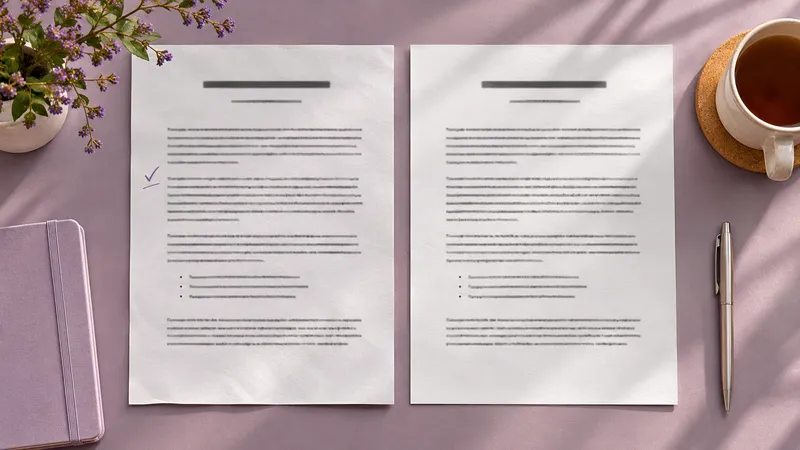
Find the draft you sent for review
Use the DOCX you sent for review and the PDF you received for sign-off. If several drafts share a filename, confirm the version from the message or folder where you first shared it. Selecting an earlier draft can fill the comparison with edits you have already reviewed.
Check changes that affect what the document says
Read each change with its surrounding text. Suppose the draft says “Send the signed form within 10 calendar days” and the PDF says “Send the signed form within 10 business days.” The number stayed the same, but the deadline moved. Find the phrase in both versions and check the entire sentence before marking the change for review.
Search for names, dates and figures you expect to find in both versions. Use the page number in the PDF and the paragraph reference in Word to verify edits against the source files. If a sentence appears in a different position, search for a distinctive phrase before treating it as missing.
Review the final PDF on screen
A text comparison can surface changes in wording. Open the PDF in a viewer to check layout, images and signatures. If the PDF is a scan, local OCR supplies the text for comparison. Verify apparent changes to numbers and short codes on the page image, where a recognition mistake is easier to spot.
Send the reviewer to the change
In your message, name both file versions and point to the PDF page that needs attention. For a longer review, save and share an HTML comparison report so the reviewer can read the old and new wording with context.