Windows 11 hides a notification banner after 5 seconds by default. To keep it on screen longer, open Settings → Accessibility → Visual effects and change Dismiss notifications after this amount of time. The longest choice is 5 minutes.
That fixes a banner that leaves while you are still reading it. It does not fix a notification that never showed a banner, or one the app took back.
Change how long the banner stays
- Open Settings → Accessibility → Visual effects.
- Find Dismiss notifications after this amount of time.
- Choose 7 seconds, 15 seconds, 30 seconds, 1 minute or 5 minutes. The default is 5 seconds.
The new value applies to the next banner. To undo it, set the menu back to 5 seconds. Microsoft documents the setting in its guide to focusing on tasks.
It is one value for every app. The per-app options on Microsoft's notifications page cover banners, the notification centre, lock-screen content, sound and priority, but not duration.
What the timer controls, and what it does not
The timer controls only how long the pop-up banner stays on screen. Windows treats the banner and the notification centre as two places: a notification can appear as a banner and is also available in the notification centre, which you open with Win + N. A banner that times out normally leaves its notification in the centre.
| What you see | Does the timer help? | Where to look |
|---|---|---|
| A banner appears and leaves before you finish reading | Yes | The setting above |
| A sound or the taskbar bell, but no banner | No | Do not disturb, or the app's banner switch |
| The banner is gone and you want to read it | No | Notification centre, Win + N |
| The notification is gone from the centre too | No | The sending app, or the guide to cleared notifications |
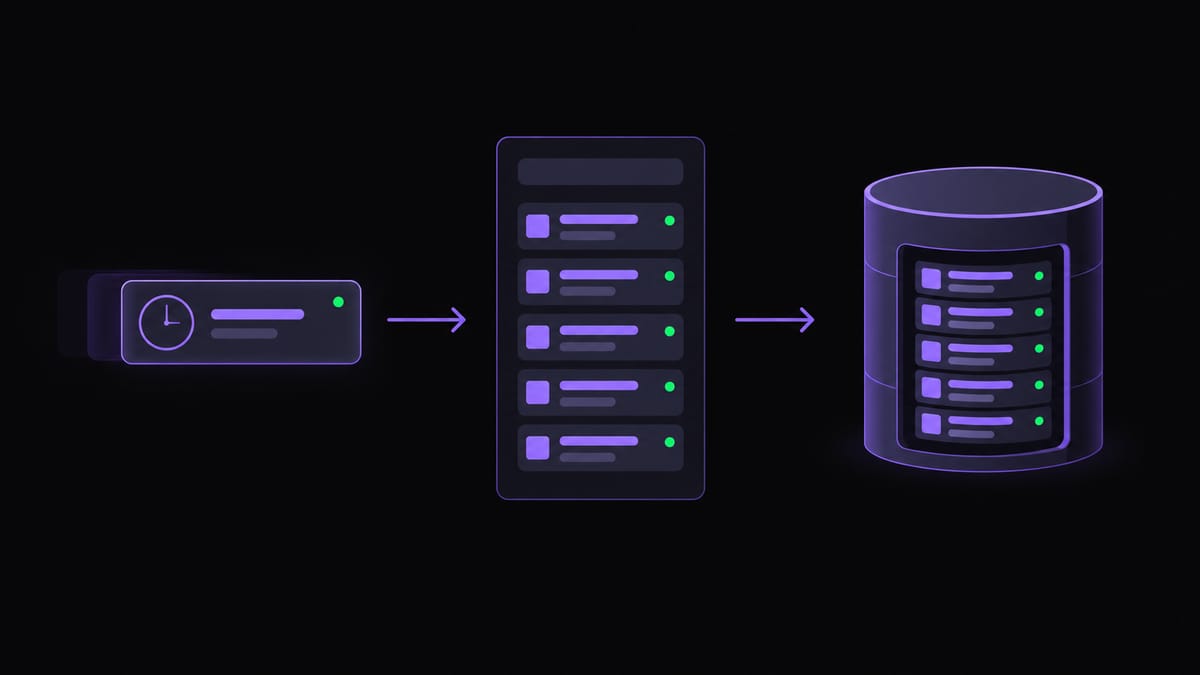
Why a banner can still vanish, or never appear
- Do not disturb is on. With it on, Microsoft says you only get banners for alarms, reminders and the apps you chose. Everything else goes straight to the notification centre. Do not disturb can also switch itself on: Windows lists times of day, duplicating the display, playing a game, using an app full screen, and the first hour after a feature update.
- Banners are off for that app. Under Settings → System → Notifications, open the app and check Show notification banners.
- The app took the notification back. Microsoft's developer documentation describes calls that let an app remove a notification it sent from the notification centre, and set when it expires. Its own example is a messaging app that clears a chat's notifications once you have read the conversation. If you read a message on your phone, the banner on the PC can go with it.
Read a banner you missed
- Press Win + N and look for the app's entry. The centre keeps a limited number per app, so the sooner the better.
- Open the sending app and check its own activity or unread list. Chat apps, email and calendars usually keep the underlying event even when the notification is gone.
- If both are empty, Windows offers no further built-in place to look. What did I miss while Do Not Disturb was on covers the per-app limit.
A longer timer, or a record
A longer timer helps with the next notification, and 5 minutes is the ceiling. It does nothing for the notification that arrived while you were away from the desk and was gone before you came back.
Notification Logger saves each notification when it arrives, with its app, text and time, so a banner that lasted one second leaves the same record as one that lasted five minutes. The history is searchable. Two limits: it records only what arrives after you install it, and it cannot record a notification Windows never raised, such as one from an app whose notifications are turned off. For Teams, see why Teams notifications are missing from the history.