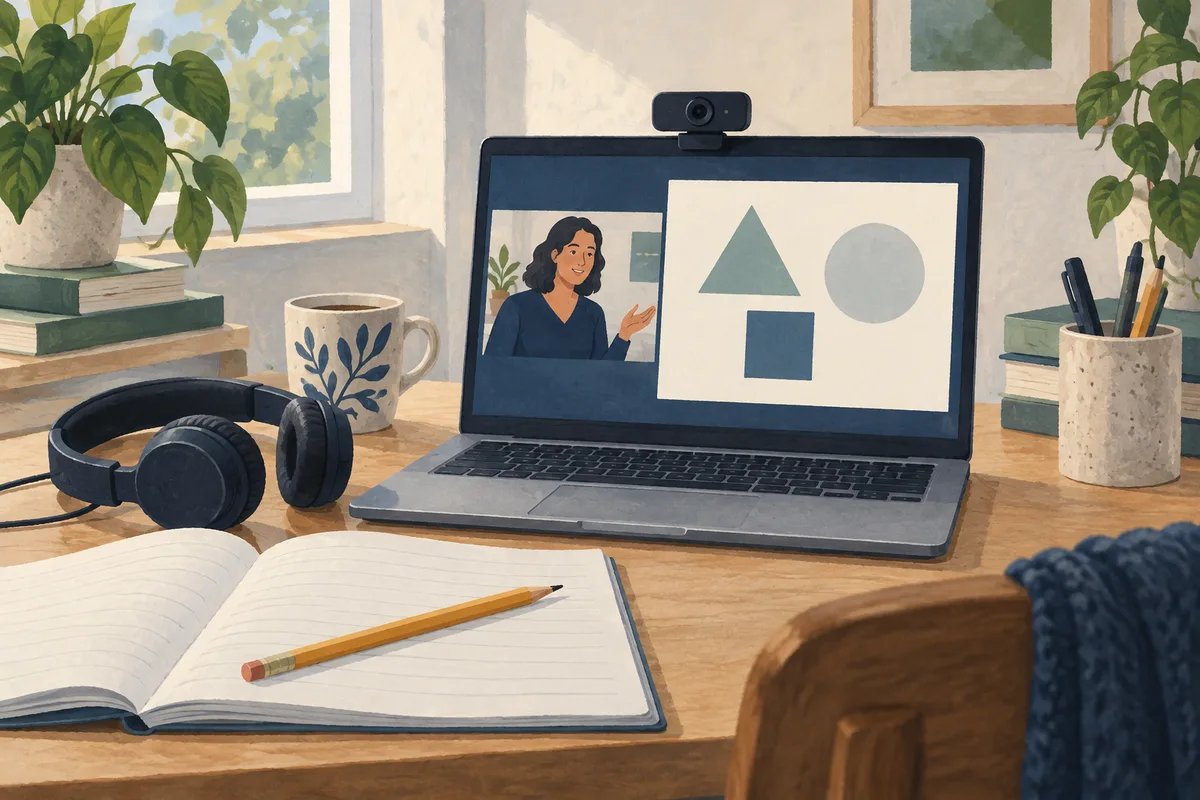
Before an online lesson, the student and tutor should check that they can hear each other, use the intended camera, read the lesson materials and share the required content in the actual teaching platform. Run a device check first, then confirm the lesson workflow together.
A microphone meter can move while the other person still hears silence. A worksheet can look clear on the tutor’s monitor and be unreadable on the student’s smaller screen. The shared checks below use the activity you are about to teach as the test.
Agree on the lesson setup before joining
Confirm the lesson link, account, start time and time zone. Decide whether the student needs a workbook, a headset, a camera aimed at written work or access to a shared document. Open those materials before the session so a login or permission request does not take the first exercise by surprise.
Download the student and tutor tech checklist (TXT) to keep beside the lesson plan. Allow a short preparation window before class; a first session or changed setup may need more time.
Check the Windows devices before opening the lesson
On a Windows PC, CallReady can check the selected camera, microphone signal and level, lighting and available audio devices. Speak at your normal teaching or study volume and check that the intended microphone responds. Confirm the framing you will use while reading or writing, rather than only while facing the camera.
Close the CallReady check window and other camera previews before opening the lesson platform. CallReady releases the camera and microphone when its check window closes. Its privacy policy explains the local processing, optional network measurement and the separate Save camera image action.
Device results do not confirm that the teaching platform can access the devices, that speech reaches the other person or that screen sharing works. Keep the platform test as a separate step. You do not need to save a camera image or record a student to complete this checklist.
Run this shared check in the teaching platform
| Check | Tutor does | Student does | Ready when |
|---|---|---|---|
| Join the right room | Open the agreed lesson room with the account used for teaching. | Join through the agreed link with the intended device. | Both participants are in the same room with the required access. |
| Hear the student | Listen while the student reads a short sample sentence. | Speak at normal volume with the intended microphone selected. | The tutor can repeat the sentence clearly. |
| Hear the tutor | Read a different sentence at normal volume. | Listen through the intended headset or speakers and repeat it. | The student hears the words without repeated dropouts. |
| Check the camera task | Check face framing or the demonstration area needed for the lesson. | Show the face or workbook view the tutor needs. | The other person can see the relevant detail without glare. |
| Read the material | Share the actual worksheet, slide or example at a useful scale. | Read one line or identify one detail from the shared view. | The student can read the material on the device used for class. |
| Test a clip, if needed | Share a short sample with the platform’s presentation-audio option. | Confirm the clip is audible as well as visible. | The student hears the clip and the tutor’s speech as intended. |
| Test student participation | Check the intended annotation, document or screen-share permission. | Write, annotate or share a sample using the lesson’s planned method. | The tutor can see the student’s action or work. |
| Agree on a backup | Confirm the approved contact method and fallback plan. | Keep the link and contact method accessible. | Both know what to do if the lesson disconnects. |
Use a made-up sentence or a sample exercise for the check. Close personal messages, grade records and unrelated files before sharing. Prefer the specific lesson window or tab when that meets the task, and check the selected preview before sharing it.
Check platform permissions and presentation sound
For a browser lesson, grant camera and microphone access to the correct teaching site. Chrome has site permissions as well as device settings; a school or workplace administrator may control them. See Google’s camera and microphone instructions.
For Zoom, the official test meeting lets you check video, audio and the microphone before class. Follow it with a check of the actual lesson room, materials and participant permissions. A test meeting alone does not confirm every setting in the tutor’s room.
For Google Meet, join the meeting with audio before presenting. Google explains that choosing Present in the pre-join screen enters Companion mode, where the microphone and speaker are unavailable. In the meeting, select the tab or window you intend to share. When sharing a tab with a lesson clip, confirm the tab-audio option and ask the student to verify the sound. Screen sharing can also be restricted by host or administrator settings. See Google’s presentation guide.
Test the activity, not just the call
For a language lesson, try a short spoken exchange and the listening clip you will use. For maths, show a worked line with the intended symbols and ask the student to read it. For music or another sound-sensitive activity, test a short sample with the platform settings your tutor recommends; ordinary speech settings may not suit the exercise.
If a second device will show handwritten work, test it in advance and keep only one active microphone and speaker path. Otherwise, two devices in the same room can introduce echo. Start with the simplest setup that lets the tutor see the work.
Resolve the failed check before teaching
- One person hears silence: check mute, the platform’s selected microphone and playback device, and any hardware mute switch. Each person should speak and listen again after the change.
- The shared page is too small: enlarge the source material or use the platform’s viewing controls, then ask the student to read another line.
- A clip has no sound: check the selected sharing mode and its audio option. Hearing the tutor’s voice does not confirm that presentation audio is shared.
- The camera is unavailable: close other previews, check site or app permissions and reopen the camera in the lesson platform. The app-specific device guide explains the difference between Windows and platform checks.
- The call repeatedly drops: use the agreed contact method. Try rejoining through the original link, then follow the backup or rescheduling plan if the problem continues.
CallReady’s optional connection measurement provides network estimates before the lesson. It cannot guarantee a stable session or verify the platform’s media route. The final readiness check is the student and tutor completing a short version of the lesson activity together.
Frequently asked questions
Does a successful CallReady check mean the lesson platform will work?
Should a student use two devices for a worksheet camera?
What should we do if the lesson connection drops?
Check the Windows devices with CallReady, then verify the lesson activity together in your teaching platform.
Get CallReady