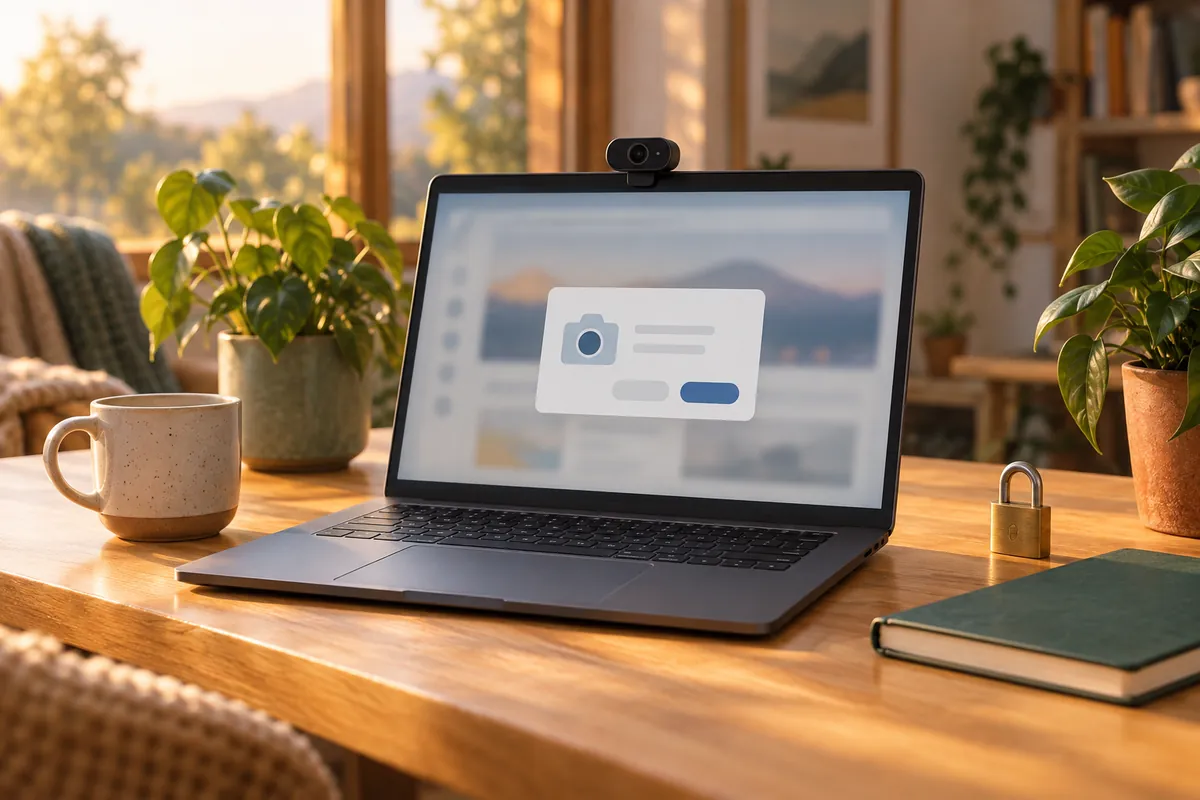
Testing a webcam on a website is generally safe if you allow the camera for that one visit and close the tab when you are done. A website cannot switch your camera on by itself: the browser asks you first and shows an indicator while the camera is in use. What the permission prompt cannot tell you is what the page does with the video once you allow it. If you only want to see yourself, Windows has camera previews built in.
What a website can and cannot do with your camera
Browsers give web pages access to the camera through one interface, and the rules for it are strict. Mozilla's documentation for getUserMedia(), the function pages use to request the camera, sets them out. Google describes the same rules in Chrome's camera help.
| Without your permission, a site cannot | After you allow it, a site can |
|---|---|
| Open your camera at all. Browsers always require your permission first. | Receive the live video from your camera while you are on the page. |
| Use the camera from an insecure page. Browsers offer camera access only on secure (HTTPS) pages. | Process the video in your browser, or send it to its own servers. Video calls work this way, and from the outside the two look the same. |
| Use the camera without the browser showing that it is in use. Browsers must display an indicator. | With a permanent permission, use the camera again on later visits without asking. |
| Start recording while you are on a different tab or in another app (Chrome). | Ask for the microphone as well. Camera and microphone are separate permissions in the browser's site settings. |
The browser stops a test page from taking over your camera in secret. The practical risks are smaller: a lasting permission left with a site you will never visit again, or a page that wants more from you than camera access.
How to test in a browser without leaving access behind
- Check the address. Make sure it is the site you meant to open and that it uses HTTPS.
- Allow the camera for this visit only. Chrome offers Allow this time, which Google says lets the site use the camera only during your current visit. Choose it rather than Allow while visiting the site, which keeps the permission for future visits.
- Check what the page asks for. A camera test has no need for your microphone. If the prompt asks for both and you only want to check the camera, find a test that asks for the camera alone.
- Do not install anything. A webcam test should work in the browser on its own. If a page asks you to download a "driver", a "codec" or a browser extension to run the test, close it.
- Close the tab when you have seen what you needed. The camera indicator should go out.
Remove the permission afterwards
If you clicked the permanent option by mistake, or tested on several sites in the past, clear the list:
- In Chrome, open Settings → Privacy and security → Site settings → Camera. Google says you can review allowed sites there and remove a permission with the delete button.
- In Microsoft Edge, open Settings → Privacy, search, and services → Site permissions → All sites. Microsoft says to select the site and set Camera to Block.
Windows keeps its own record. Under Settings → Privacy & security → Camera, recent activity lists which apps used the camera and when. Microsoft describes this as a seven-day history of access to the camera, microphone and other resources. Windows tracks apps, so a browser shows up as Chrome or Edge, not as the site that used the camera.
Test the camera without a website
If the question is simply "does my camera work and how do I look", nothing has to leave your PC:
| Option | What it shows |
|---|---|
| Windows Camera app | A live preview from each connected camera; switch between them with the Change camera button |
| Settings → Bluetooth & devices → Cameras (Windows 11) | A preview, plus brightness, contrast and other controls your camera supports |
| Your meeting app's own preview or test call | Whether that app sees the right camera. See Teams test calls and Zoom test meetings |
| CallReady | Camera, microphone, speakers, light on your face and connection, in one check |
CallReady runs from the Windows system tray. Camera, microphone, face and lighting analysis stays on your PC, there is no account, and it makes no recordings. The connection test contacts Cloudflare.
When the camera light comes on by itself
If the camera light or the Windows indicator comes on when you are not using any camera app, find out who turned it on rather than guessing. Open Settings → Privacy & security → Camera and check recent activity. A meeting app left running in the tray or a forgotten browser tab is the usual cause. The guide to a camera in use by another app shows how to find and close it. If the camera has a physical shutter, closing it blocks the lens whatever the software does. The laptop camera guide shows where shutters are on HP, Dell and Lenovo laptops.
Frequently asked questions
Can a website turn on my webcam without asking?
Do webcam test sites record you?
Should I choose Allow this time or Allow while visiting the site?
How do I see which sites can use my camera?
Check your camera, microphone and light locally with CallReady, without granting a website access to your camera.
Get CallReady