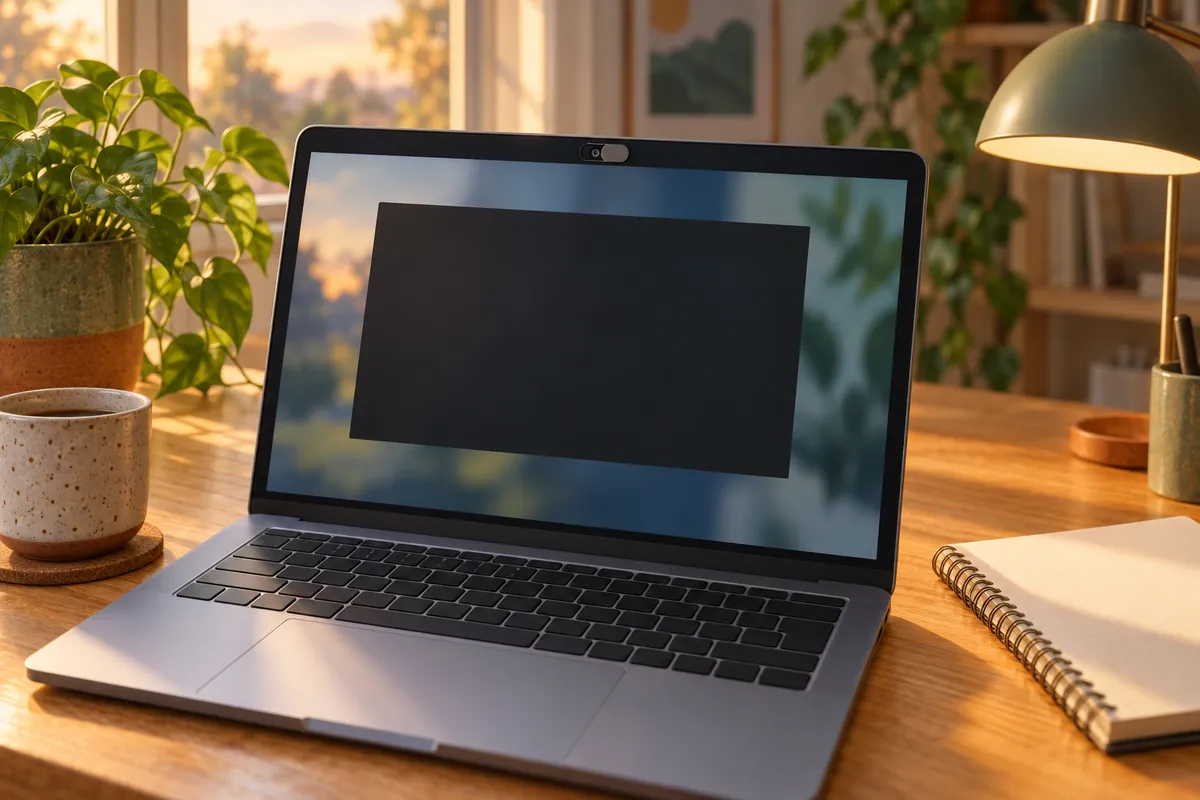
When a laptop camera shows a black or grey picture and Windows reports no error, the cause is often one of the laptop's own privacy controls: a sliding shutter over the lens, a camera key on the top row of the keyboard, a switch on the side, or a privacy mode in the maker's app. Windows cannot tell you which one is on, so you check them yourself. HP, Dell and Lenovo all list them in their camera troubleshooting guides before drivers.
If none of these controls is the cause, the guide to a camera that stopped working in Windows 11 covers privacy settings, apps that hold the camera and drivers. This page is only about the controls built into the laptop.
Five controls that switch a laptop camera off
Not every laptop has all five. Check the ones yours has, in this order, and open the Windows Camera app after each change to see whether the picture is back.
| Control | Where to look | How to turn the camera back on |
|---|---|---|
| Sliding shutter or cover | Directly over the lens, in the frame above the screen | Slide it until the lens is fully visible. The direction differs between models. |
| Camera key | Top row of the keyboard, usually marked with a crossed-out camera | Press it once. On some laptops you hold Fn as well. |
| Privacy switch | The side of the laptop or next to the camera (some HP models) | Slide it away from the camera icon. |
| Maker's privacy mode | Lenovo Vantage, or similar software from the maker | Turn the camera privacy setting off. |
| Camera disabled in BIOS | The firmware setup screen | Set the camera option back to enabled. |
A shutter and a camera key give the same symptom: the camera starts, the app shows a black or grey frame, and no error appears. That is because, as far as Windows can tell, the camera is working. A camera that is off in the BIOS is different. Windows no longer sees a camera at all, and the Camera app says it cannot find one.
HP: shutter key, privacy switch and cover
HP's webcam troubleshooting guide says that some HP laptops have a webcam privacy switch or a webcam shutter key, and that some also have a sliding privacy cover.
- The shutter key is in the row of action keys at the top of the keyboard. Press it to turn the webcam off and press it again to turn it back on. On some models you hold
fnat the same time. The key has its own light: when the light is on, the webcam is off. - The privacy switch is on the left or right side of the laptop, or next to the camera. Sliding it towards the icon beside it turns the webcam off; sliding it away turns it back on.
- For the privacy cover, HP says to slide it to the right to uncover the lens.
If the camera still does not appear after you have checked all three, HP's next step is the Webcam Connection Test in HP PC Hardware Diagnostics. HP also notes that the webcam might have become unplugged inside the laptop, in which case it might need service.
Dell: shutter, F9 and the BIOS setting
Dell's camera troubleshooting page starts with the privacy shutter: find it and make sure it is open. Dell names the Latitude 7340 as an example of a model that has one. Owner's manuals say which way to slide it. The Latitude 5340 manual, for example, says to slide it left to uncover the lens.
Some Dell laptops have a camera key instead of a hand-operated shutter, or as well as one. The Dell Optimizer guide lists F9 as the key that turns the camera on and off on select models, and says Dell Optimizer shows a notification when the camera is switched with that key. On the Latitude 9420, Dell says the F9 privacy option controls an electronic shutter: while camera privacy is on, the shutter stays closed even when an app tries to use the camera.
If Windows does not see the camera at all, Dell suggests checking the BIOS. Restart, press F2 repeatedly until the setup screen opens, look under Integrated Devices for Enable Camera, turn it on, then save and exit. Change only that option; if you are unsure what you changed, exit without saving. On a work laptop, ask IT first, because the camera may have been turned off deliberately.
Lenovo: ThinkShutter, the camera key and Vantage
Lenovo's camera troubleshooting article for ideapad and ThinkPad lists these checks, among others, before drivers:
- Open the camera slider. ThinkPad models call it ThinkShutter. If the picture is blurry rather than black, Lenovo says the protective sticker may still be on the lens.
- Press the camera function key. Lenovo's ideapad camera tips give
F8orFn+F8; the key differs by model. - Turn off Camera Privacy Mode in Lenovo Vantage. Open Vantage, go to Device → My Device Settings → Display & Camera and find Camera Privacy Mode. If the toggle is green and says On, switch it off. Lenovo says a picture should then appear in the camera preview on that page.
Camera Privacy Mode is easy to miss because it is in Lenovo's own app, not in Windows. Every Windows privacy switch can be on while Vantage keeps the camera blocked.
When none of these is the cause
If the shutter is open, the key is off and the maker's app shows no privacy mode, the cause is in Windows or in the app you are using:
- Windows privacy settings and apps that already hold the camera: camera not working in Windows 11 and camera in use by another app.
- The camera works in the Windows Camera app but not in Teams or Zoom: camera works in Windows but not in the meeting app.
Hardware tests from the maker, such as HP PC Hardware Diagnostics, check the camera without Windows drivers or apps involved. Run one before you reinstall drivers or arrange a repair.
Check the camera before the call
Shutters get closed between calls, and you usually find out when the meeting opens. CallReady runs a check from the Windows system tray: it opens a live preview, confirms the camera starts, reports the active device, resolution and frame rate, and tells you whether a face is visible. If the preview is black or no face is found, look at the shutter and the camera key first. CallReady cannot open a shutter or press the key for you.
Frequently asked questions
Why is my laptop camera black with no error message?
Which key turns the laptop camera back on?
All Windows camera settings are on, but my Lenovo camera is still black. Why?
Is it safe to turn the camera on in the BIOS?
Run CallReady's check before an important call and see whether the camera starts and shows your face while you still have time to open the shutter.
Get CallReady