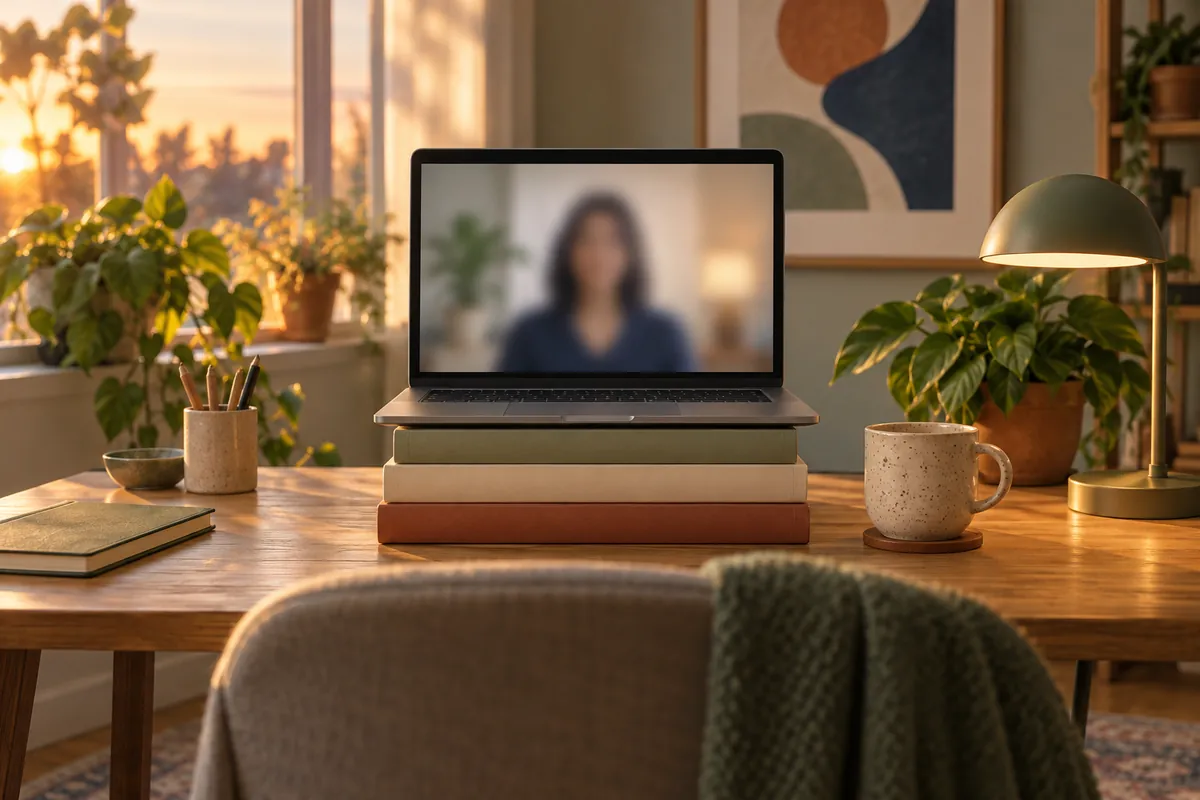
The best camera angle for a video call is straight on, with the lens at the height of your eyes. Sit about an arm's length from the camera so it shows your head and shoulders, and keep your eyes about a third of the way down the picture. Eye level does more than flatter: in one experiment, viewers rated people filmed at eye level as more trustworthy than the same people filmed from above or below.
Lighting is a separate fix, covered in improving webcam lighting and using your screen as a light. This guide covers where the camera goes and where you look.
Height: raise the camera to your eyes
A laptop on a desk films you from below. People see your chin, the ceiling and, as Syracuse University's IT staff put it, a view up your nose. Raise the laptop on a stand or a stack of books until the lens is level with your eyes. With an external webcam on a monitor, raise the monitor instead. UNC's career centre recommends eye level or slightly above, which makes eye contact easier to read.
The angle also affects how people judge you. In a 2018 study by Baranowski and Hecht, viewers watched 12 actors filmed from eye level, from below and from above, and rated them as most trustworthy when the camera was at eye level. Raising or lowering the camera did not change how attractive they were rated. The study used a filmed game scenario rather than video calls, but it points the same way as the usual advice.
| Camera position | What the other person sees | Fix |
|---|---|---|
| Below your eyes (laptop on the desk) | Chin, nostrils, ceiling lights | Raise the laptop or use an external camera at eye height |
| Level with your eyes | Your face straight on | Keep it |
| Well above your eyes | The top of your head, looking down at you | Lower the camera or move the screen down |
| Off to one side (second monitor) | Your profile while you talk | Put the call on the screen with the camera |
Distance and framing: head and shoulders
Logitech suggests about an arm's length between you and the camera, which puts your head and shoulders in the frame. Closer than that, your face fills the screen and every movement looks large. Further away, you shrink into the room and your expression is hard to read.
A simple framing rule: keep your eyes about a third of the way down the picture, with a little space above your head and your shoulders visible. The Windows Camera app can show framing grids in its settings, which makes the top third easy to see. In the preview, check three things:
- Is there more ceiling than face? Raise the camera or tilt it down slightly.
- Are your eyes in the middle of the picture or lower? Move the camera up, or sit higher.
- Do your shoulders disappear at the bottom? Move back a little.
Where to look
Career services at UNC and elsewhere advise looking at the camera rather than at your own picture. Research adds a detail: you don't need to stare into the lens. In a 2024 perception study, viewers felt most looked at when the person on screen gazed at a point about 2 degrees of visual angle below the lens. At a normal distance from the screen, that is roughly 2 cm below the camera.
The same effect explains why gallery view breaks eye contact. In a 2022 study of gaze in video conferences, Horstmann and Linke found that the area in which a gaze reads as eye contact is small. With nine people in a 3 × 3 grid and the camera above the screen, it often covers only the top-middle tile, directly under the camera. Two practical habits follow:
- Move the meeting window, or the person you are talking to, to the top of the screen, just under the camera.
- With two monitors, keep the call on the screen that has the camera.
Automatic framing on some Windows PCs
On PCs with a neural processing unit (NPU), Windows Studio Effects includes Automatic framing, which keeps you centred as you move, and Eye contact, which adjusts your gaze to simulate looking at the camera. Microsoft describes automatic framing as cropping and zooming the picture to keep you framed. It works with the image the camera already captures, so it cannot turn a view from below into an eye-level one. Raise the camera first, then let the effect handle small movements.
Check the preview before the call
Raising the camera also changes what is behind you and where the light falls, so look at the preview again after you move it. CallReady opens a live preview from the Windows tray, reports whether a face is visible and evaluates the light on your face. It does not judge your camera angle: a face in frame is not the same as a good angle. Use the preview to check height and framing yourself.
Frequently asked questions
What is the best camera angle for video calls?
How far should I sit from my webcam?
Should I look at the camera or at the screen?
Does CallReady check my camera angle?
Set the camera height once, then run a quick CallReady check before each call to confirm the camera, light and microphone.
Get CallReady