Windows has no setting that makes another app's window see-through. Tools do it with a documented window style, and they can add a second effect, click-through, that sends your mouse clicks to whatever is behind the window. Below is how both work, how to use them safely with Pin Windows, and where they stop working.
Two different effects
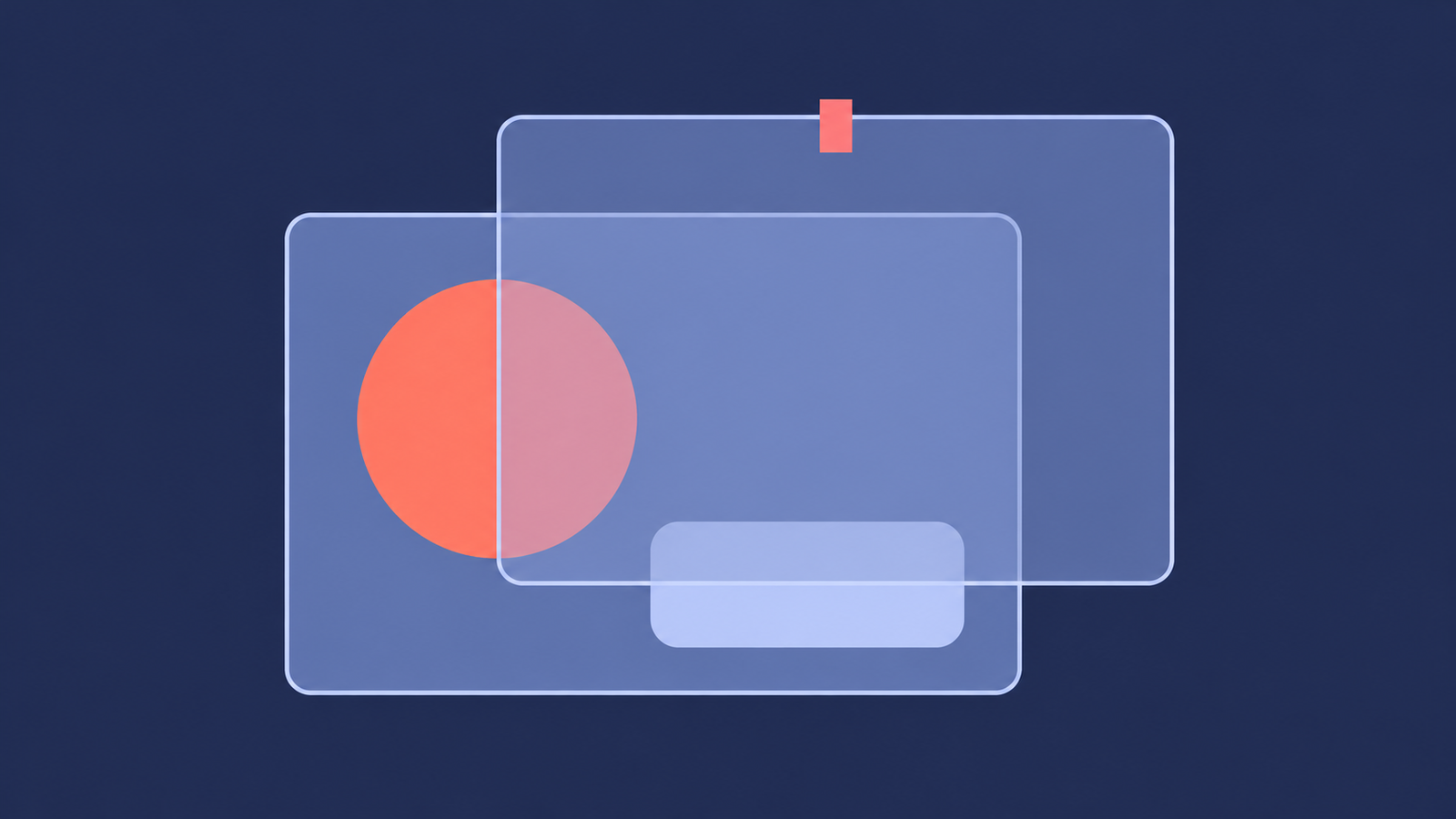
People often mix up two effects that behave differently. Transparency makes the window itself see-through, so you can read what is underneath. Click-through changes where the mouse goes: your clicks pass through the window to whatever is behind it. You can use either one alone, or both together for an overlay that you can see but never click by accident.
How Windows does it
Windows has no setting for this. Tools use a documented feature called a layered window. Microsoft's documentation says layered windows "can be partially translucent, that is, alpha-blended". You turn a window into one by setting the WS_EX_LAYERED style, and you choose the opacity with SetLayeredWindowAttributes. One detail matters: a window that has just become layered "will not become visible" until that call has been made. A careless tool can leave a window invisible.
Click-through is the WS_EX_TRANSPARENT style. For a layered window, the documentation says the shape of the window "will be ignored and the mouse events will be passed to other windows underneath the layered window". Both facts come from Microsoft's pages on Window Features (see Layered Windows) and Extended Window Styles, checked in October 2026.
A tool changes another app's window from the outside, so it has to put the original styles back when it is done. That separates a safe tool from a risky one.
What it is good for
- Reading while you write: keep a reference page at 70 to 80% opacity above your editor and read it without switching windows.
- Watching something while you work: a chart, a build log or a stream in a corner of the screen, faded so it does not compete with your work.
- Comparing: lay one window over a design, a spreadsheet or a second document to line things up.
- Keeping notes in view: pin a notes window, fade it and click through it, so it reminds you without getting in the way.
Try 75% first and adjust from there. Pin Windows stops at 30% so that a window never fades out completely.
Do it with Pin Windows
- Press
Ctrl+Alt+Por choose Pick window from the tray menu, then click the window you want. - On that window's card, move the opacity slider between 100% and 30%, or use the 75% and 50% presets. Reset returns to 100%.
- For click-through, turn on the Click-through option on the card. The first time, the app explains what it does and asks you to confirm.
- To get control back, turn the option off, use Restore on that window, or press
Ctrl+Alt+Shift+Rto restore everything.
The restore shortcut and the tray menu belong to Pin Windows, not to the window you changed, so they keep working when that window ignores the mouse. Restoring puts back only the styles the app added. A window that already used transparency of its own keeps its settings, and if the app cannot read them safely it declines to change that window. Pin Windows is being prepared for Microsoft Store and is not available there yet.
What about PowerToys?
PowerToys Always On Top keeps a window on top, but its documentation lists an opacity setting only for the highlight border, not for the pinned window. For a see-through window you need a different tool. Our always-on-top guide compares the options.
Where it does not work
No tool can promise this for every window. Expect trouble in these cases:
- The app runs as administrator. A tool that runs as a normal user is often not allowed to change such a window.
- The window already manages its own transparency. A careful tool leaves it alone instead of overwriting it.
- The app redraws its window frame, for example when it resizes or restarts, and the effect may be reset.
- The window belongs to a full-screen game or protected video. Treat these as unsupported.
Try an effect first on a window you can afford to lose track of, and learn the way back before you rely on it.
Getting a window back
A window that seems stuck is rarely lost. Use the tool's restore command first: in Pin Windows that is Ctrl+Alt+Shift+R or Restore all in the tray menu. If the tool is not running, closing the window and opening it again clears the effect, because the styles belong to that window and not to your account.
Frequently asked questions
Does Windows have a setting to make a window transparent?
No. Windows has no setting for another app's window. Tools apply a documented window style, the layered window, to do it.
What is the difference between transparent and click-through?
Transparent makes the window see-through. Click-through sends your mouse clicks to the window behind it. They can be used separately or together.
How do I click a window again after making it click-through?
Turn click-through off in the tool, or use its restore command. In Pin Windows that is Restore all in the tray menu or the shortcut Ctrl+Alt+Shift+R.
Is it safe to change another app's window?
It is safe when the tool restores exactly what it changed. A window that was made see-through and never restored can look invisible, which is why a clear way back matters.
Why does transparency not work on some windows?
Some apps manage their own window effects, run as administrator or draw in a way the style does not affect. A well-made tool tells you so instead of failing quietly.