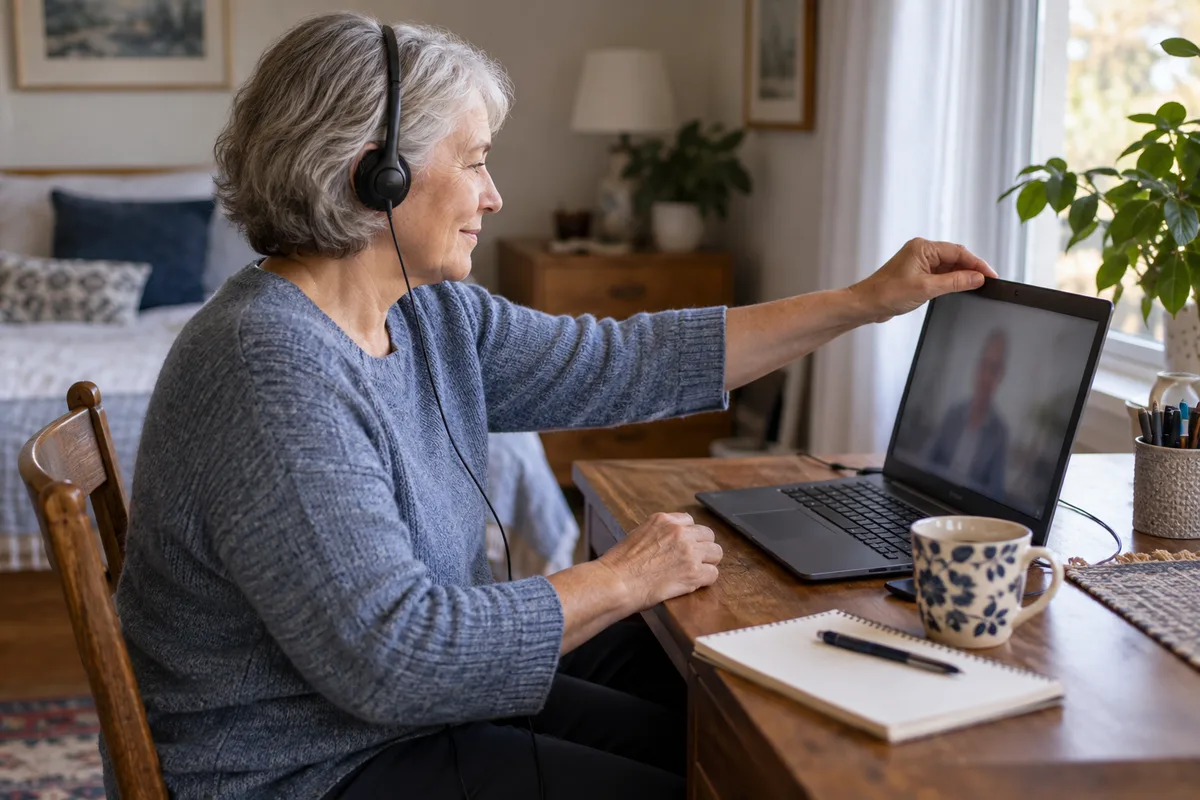
Before a telehealth video visit, check the laptop’s camera, microphone, audio output and connection, then run the provider’s own test or joining instructions. Keep the provider’s contact details nearby in case the portal will not open or the call disconnects.
Prepare the setup before the appointment day if you can. That leaves time to solve a login problem or arrange technical help without using the start of the visit for troubleshooting.
Confirm the visit link and required software
Use the appointment details from the provider or its patient portal. Check which browser or app it requires, whether you need to sign in and whether it offers a practice connection. Ask the provider about accessibility support if you need captions, a screen reader or help joining.
The HHS patient preparation guide recommends checking the visit details, testing technology, choosing a quiet private spot and signing on early. Follow the provider’s requested arrival time rather than a universal countdown.
Check the equipment you will actually use
Connect the headset or external camera before testing. Sit where you plan to take the visit, with the same laptop position and audio output. A test made with the built-in microphone does not tell you whether the headset you connect later is ready.
| Check | What to confirm |
|---|---|
| Camera | The intended camera opens and your face is visible |
| Microphone | The selected microphone receives your voice; check its physical mute switch |
| Playback | You can hear the provider’s test sound or another harmless audio sample |
| Position and lighting | The laptop is stable, the camera is near eye level and your face is not hidden by backlight |
| Connection | The connection is usable in that room; pause competing downloads if they disrupt the test |
CallReady checks the selected Windows devices, microphone signal and level, face lighting and connection. It can help reveal a wrong microphone or a camera already in use. Its microphone check does not establish speech intelligibility at the other end, and an available speaker still needs a listening check.
CallReady processes camera and microphone data locally. Its connection measurement contacts Cloudflare; it does not send camera frames or audio with that measurement. See the privacy policy for the data handling.
Test camera and microphone access in the provider’s portal
Close the CallReady camera preview and other camera apps before opening the portal test. Select the intended camera, microphone and output in the portal if it offers those controls. Watch the preview and try the provider’s sound check.
For a Chrome visit, camera and microphone permission belongs to the website as well as the computer. Confirm the provider’s address before granting access. You can review permissions in Settings → Privacy and security → Site settings → Camera or Microphone. A managed browser may require an administrator to change these settings. See Google’s camera and microphone guide.
If the devices pass a local test but fail in the portal, check site permission, the portal’s device selection and whether another app still holds the camera. The guide to app-specific device failures explains this distinction.
Do a short final pass
HHS recommends a steady camera, a centred face, suitable lighting and audible playback. Put the laptop on a stable surface and look at the portal’s own preview. If screen light helps, use it only at a comfortable brightness; it is not needed when the room already lights your face well.
Close private documents and quiet distracting notifications. Have the appointment link and the provider’s backup contact method available outside the video window. If the portal fails, contact the provider rather than repeatedly changing unrelated device settings.
This checklist covers the technical setup. Follow the provider’s directions for the appointment itself. A passed device check cannot confirm portal availability or guarantee that the video connection will remain stable throughout the visit.
Frequently asked questions
Does a successful CallReady check mean the telehealth portal will work?
Should I allow every website to use my camera?
What if I cannot join the appointment?
Use CallReady for a device check before the appointment, then follow the provider’s instructions in its own portal.
Get CallReady