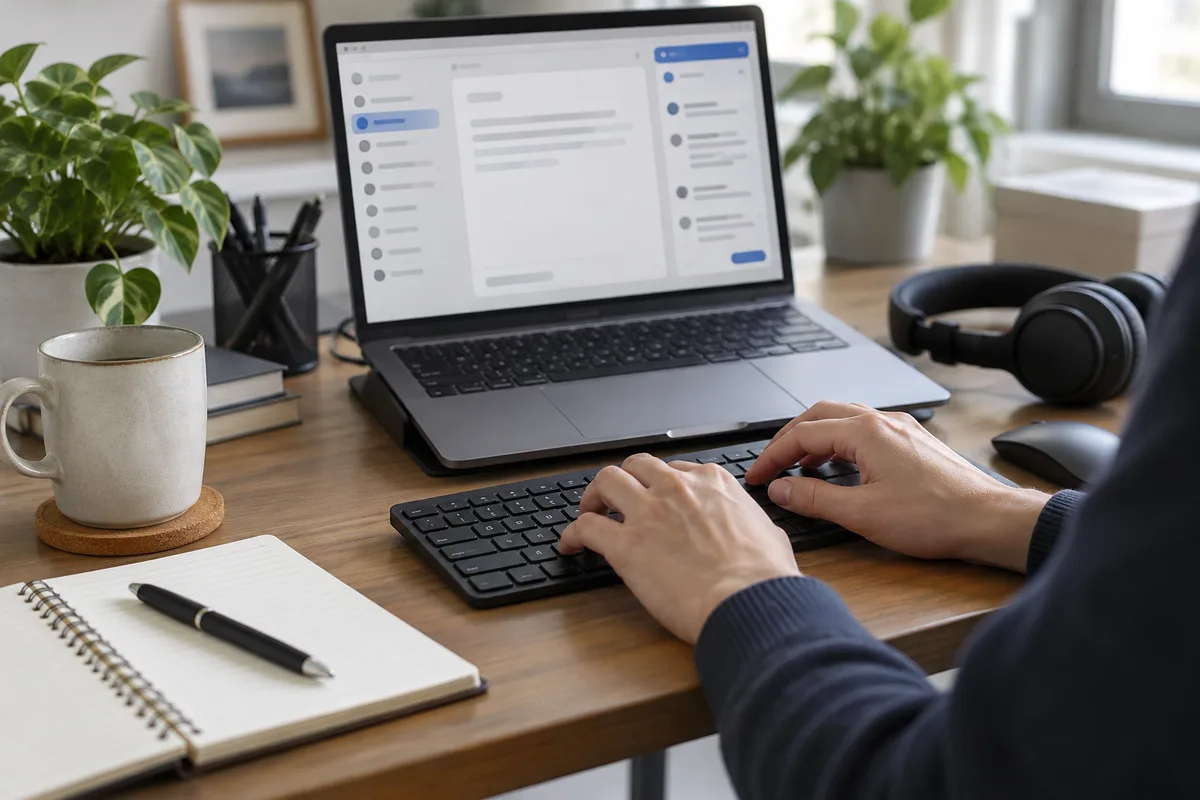
For Smart Compose-style suggestions across Windows applications, first check the help already built into your writing app. If you still need suggestions elsewhere, try a local assistant such as Typeahead in your actual email, chat and editor fields. Test the fields and acceptance keys you use.
Google Smart Compose is not confined to Gmail. Google documents it in Docs and Chat too. Those are individual product features, with their own settings and availability; turning one on does not add suggestions to every Windows app.
Start with the assistant you already have
In Gmail on a computer, open Settings, then See all settings → General → Smart Compose. Google lists English, Spanish, French, Italian and Portuguese support; Tab accepts a suggestion. You can turn writing suggestions and personalisation on or off separately. See Gmail’s Smart Compose instructions.
Google’s Docs instructions describe Smart Compose for work or school accounts, in English, Spanish, Portuguese and French. Its setting is under Tools → Preferences → Show Smart Compose suggestions. Check your account and the current product instructions rather than assuming the Gmail settings apply to Docs.
If the built-in feature already suits the job, keep it. Add another assistant only when the gap is clear: perhaps the desktop chat client or an editor where your usual suggestions disappear.
Choose prediction or a saved snippet
| Writing task | Useful approach | What to review |
|---|---|---|
| Continue a changing sentence | Contextual predictive suggestions | Meaning, tone and factual details |
| Insert the same address or signature | A saved text shortcut | Whether the saved text is still current |
| Use suggestions in another Google product | That product’s Smart Compose setting | Account, language and field availability |
| Draft in several Windows applications | A Windows typing assistant | Compatibility in each field and acceptance key |
A local language model generates likely continuations; it does not know whether a proposed delivery date, price or customer name is correct. Use a fixed snippet for wording that must remain exact, and check either kind of inserted text before sending.
Test Typeahead in a real writing field
Typeahead runs its suggestion model locally on the Windows PC. Download the required model first. Local inference keeps the drafting text on the PC for that process; the download itself needs a connection. The privacy policy describes the app’s data handling.
- Choose a non-sensitive draft in one application you use often. Type a few sentences in your usual language and watch where the suggestion appears.
- Check the acceptance key in the current app and profile. Typeahead can use Tab or Right Arrow; do not assume every app uses the same key.
- Accept one short suggestion, then check the cursor, spacing and next character. Make sure normal field navigation still behaves as expected.
- Repeat in your second writing application. A successful test in a plain editor does not establish compatibility with a specialised web editor.
- After the model download, repeat a safe draft offline if that is part of your workflow. Compare the result with your normal setup.
Resolve overlapping suggestions
If Gmail, Word or another app displays its own ghost text while Typeahead suggests a different continuation, test with one assistant active at a time. Use the app’s settings to turn off the extra suggestion layer where necessary. The guide to overlapping text suggestions covers the built-in Windows and Office controls.
Judge the result by how much writing and correction it removes in a normal draft. Reject a phrase that changes your meaning, and check names, numbers and commitments before sending.
Google product instructions were checked on 10 October 2026.
Frequently asked questions
Is Smart Compose only available in Gmail?
Can Typeahead work without internet?
Is predictive text the same as a text shortcut?
Try Typeahead in a non-sensitive draft in the Windows applications you actually use, then compare the editing effort.
Get Typeahead