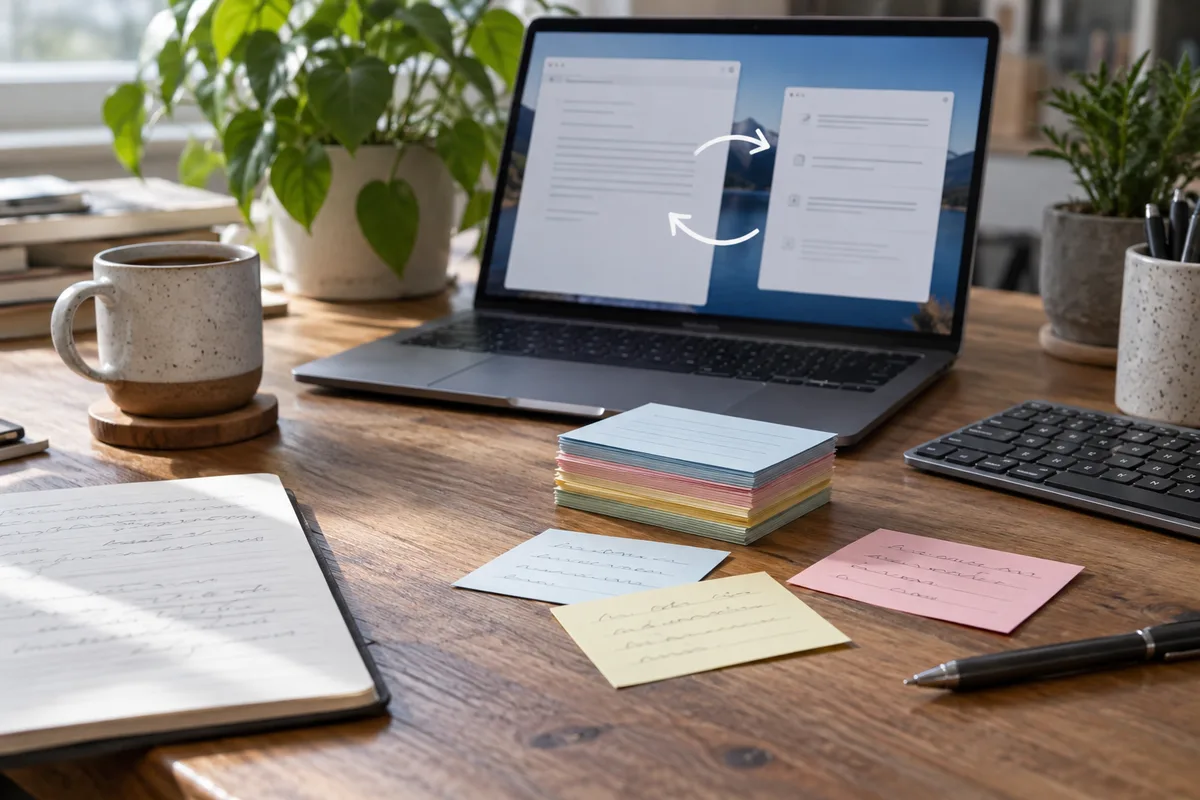
Copy the Word AutoCorrect entries you actually use into a small plain-text snippet library, then test them in another Windows app. You can reuse the wording of a greeting or sign-off without moving Word's internal files or exporting the whole AutoCorrect list.
This workflow is for saved text such as addresses, standard replies and signatures. If your goal is to fix spelling in every sentence, start with a few specific replacements rather than treating a snippet library as a complete spelling checker.
Find the entries worth keeping
In desktop Word on Windows, open File > Options > Proofing > AutoCorrect Options. Inspect the Replace and With entries you use. Microsoft's AutoCorrect guide explains adding and removing entries and says the list is shared across Office programs that support AutoCorrect.
Write down a few useful pairs. Keep a copy of the original wording while you transfer them. Leave Word's entries in place until the new library works where you need it.
| Entry | What to transfer | What to review |
|---|---|---|
| A greeting or closing | The plain text and intended shortcut | Recipient details and tone |
| An address or contact block | Current, approved contact information | Line breaks in the destination |
| A formatted paragraph or table | Only the wording if plain text is enough | Formatting that must stay in Word |
| A common typo | A specific replacement you want everywhere | Whether it conflicts with another tool |
Create equivalents in Text Replacements
In Text Replacements for Windows, add a shortcut and its replacement text. Use a deliberate prefix, such as ;w-close, for a saved paragraph. A short ordinary word can expand when you did not intend it to.
The application supports import and export with CSV or JSON. For a small transfer, copying the pairs manually gives you a chance to remove old phone numbers, stale links and wording that belonged to a particular document.
Word AutoCorrect, Word AutoText and a system-wide snippet are different mechanisms. The AutoText and Windows-shortcuts guide covers that choice; here the task is reusing existing plain text across apps.
Use the downloadable CSV as a starting point
Download the four-entry transfer example. It contains a greeting, a closing, a status message and a dated note. The entries are disabled so you can edit them before enabling them. Square-bracketed labels such as [Name] are literal text to replace, not automatic form fields.
shortcut,replacement,enabled,triggerMode
;w-greeting,"Hello [Name],",false,AfterDelimiter
;w-close,"Best regards,
[Your name]",false,AfterDelimiter
The CSV needs the headers shortcut and replacement. The optional enabled and triggerMode columns let you keep samples disabled and choose expansion after a delimiter. Quote a replacement that contains a comma or line break, and save the file as UTF-8.
Export your existing Text Replacements library before importing. Review the import result and check for duplicate shortcuts. The backup and transfer guide explains moving a library in more detail.
Test one entry before copying the rest
- Replace the sample wording with text you want to reuse and enable that entry.
- Type its shortcut followed by a space in a blank draft in a simple editor.
- Check the resulting text, line breaks and retained space.
- Repeat in the browser, chat or email field you actually use.
- Open a Word draft and check whether Word's own AutoCorrect also changes the same trigger.
If both tools act on the same shortcut, give the Windows entry a different prefix or keep that trigger in only one tool after testing. Record the original entry before changing it so you can restore it.
Text Replacements works through Windows keyboard input. Elevated applications and specialised editors can behave differently; use the one-app troubleshooting guide if a shortcut succeeds in a plain editor but fails elsewhere.
Keep the library small enough to review
Move the entries that solve a current writing task, then add more as needed. Review names, dates and links before sending the expanded message. A shortcut can insert an old answer just as quickly as a current one.
Word's interface and AutoCorrect behaviour were checked against Microsoft documentation on 10 October 2026. The transfer described here creates equivalent plain-text entries; it does not read or modify Word's internal AutoCorrect files.
Frequently asked questions
Does changing Word AutoCorrect add a shortcut to Slack or a browser?
Can I import a Word AutoCorrect file directly?
Will a Windows text shortcut preserve Word formatting?
Use Text Replacements for a small set of reviewed plain-text shortcuts in the Windows apps where you write.
Get Text Replacements